

Change your page with AI
Ask for a change to your launch page in plain language, and the assistant makes it with the editor's own sections, layouts and theme. Free during beta.
The page editor has an assistant. Ask for a change in plain language and it makes the change with the same sections, layouts and theme you would use by hand. It is built in, needs no setup, and is free during beta.
Where to find it#
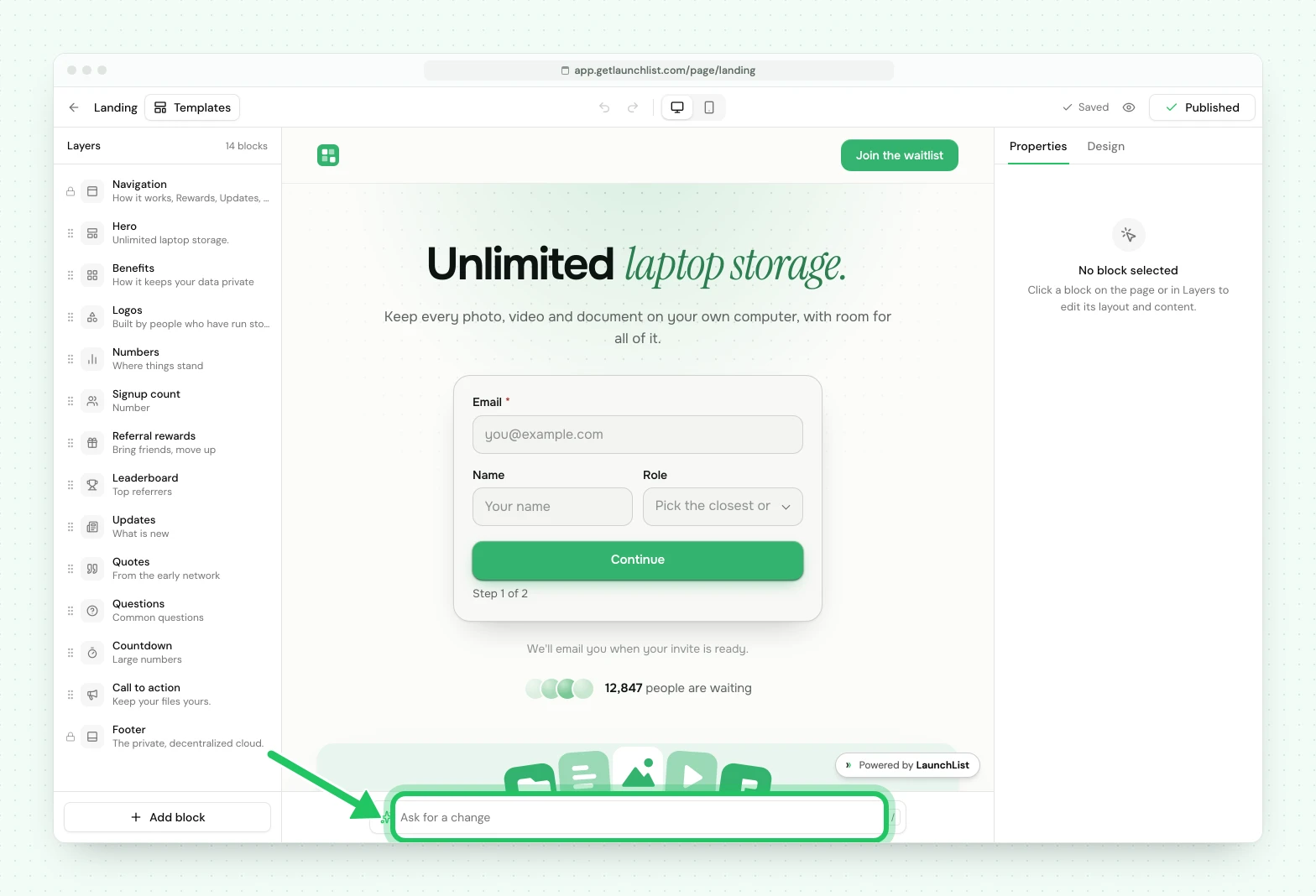
Open Pages, then Edit page. Under the page there is a box labeled Ask for a change.
Press / to jump to it.
Asking for a change#
Type what you want, for example "make the headline shorter", "add a questions section about pricing" or "use the dark style", and press Enter. A few seconds later the page changes, and a line under it says what was done.
- Select a section first and "this" means that section: "rewrite this for developers".
- Each answer is one undo step. Press Undo on the answer, or undo as usual, and the page is as it was.
- The change saves like any other edit. It is part of your draft, and your live page does not change until you publish.
If what you asked for is not something the page can do, the assistant says so and changes nothing rather than guessing.
What it can change#
Everything you can change by hand:
- the words in a section
- a section's layout
- adding, removing, moving and duplicating sections
- the page's style, accent color, fonts and corners
It picks a style and a font pairing by name from the same list you see on the Design tab. It does not write code, and it cannot give one section its own colors or spacing, because sections do not have any.
What it leaves to you#
It writes from what you tell it and from your project's details. It does not invent what is yours to decide: a customer's name, a quote, a number, a price, a launch date. It also never invents an image or a link's address.
Starting a new page#
A page that has nothing on it yet opens on a start screen with three ways to begin:
- Start from a template. Nine starting pages, each a whole page with sample words about a made-up product: Relay (SaaS), Stride (mobile app), Marlo (AI tool), Pricing Sprint (event or course), Mesa (pre-order), Solostack (newsletter), Vesper (referral waitlist), Ferry (developer tool) and One screen. Preview opens the whole page as it was designed, at desktop or phone width. A template starts in its own colors, and you can switch to your own under Design. Use it as it is and replace the words yourself, or choose Have AI write it for my product in the preview: the assistant keeps that template's design and writes your words into it. You can also look through all nine before you sign in: getlaunchlist.com/templates shows each one live, in every style, with a list of what is on it. Use this template there opens setup on that page.
- Describe it and let AI write it. Say what you are launching in a sentence or two. The assistant picks the style, the fonts and the sections from our designed options and writes the words. It takes a few seconds, and the editor opens on the finished draft with a line saying what it chose. If it cannot write the page, you stay on the start screen with your sentence, and nothing is started.
- Start blank. An empty page in the default style. You add each section yourself with Add your first block.
Nothing is published by starting a page. You publish when you are ready.
Changing the template#
On a page that already has sections, Templates at the top of the editor opens Change template, which offers the same three ways. It replaces your whole draft, and your live page does not change until you publish.
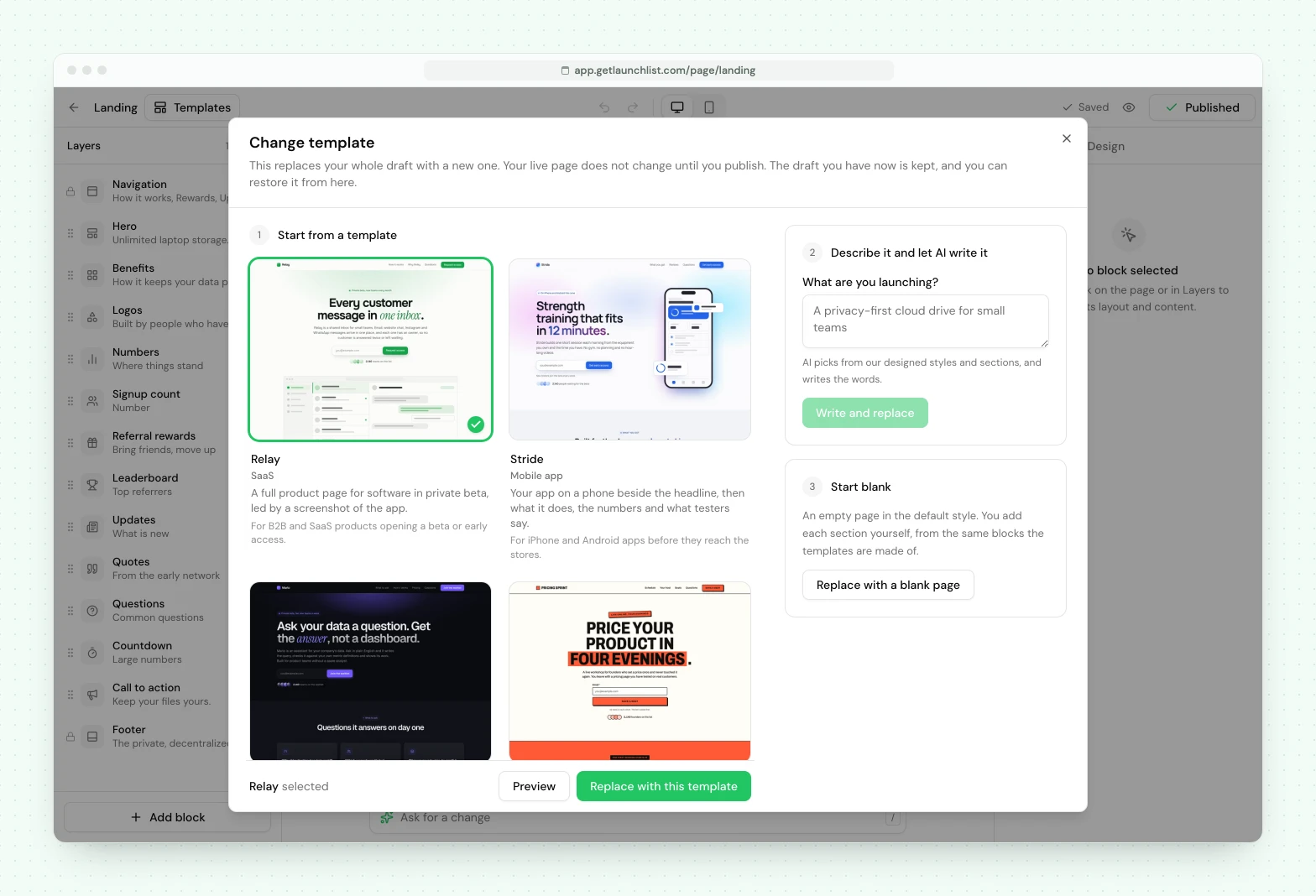
The draft you replaced is kept. The confirmation that appears offers Undo, and Restore at the top of Change template brings the draft back later, even after you reload. Restoring swaps the two drafts, so choosing it again takes you back. One earlier draft is kept: changing the template a second time replaces it.
From your own AI tools#
If you connect an agent through MCP, it can read your page, draft a new one from a description, and change a draft. It publishes only when you ask: it shows you the address and what will go live, and publishes after you say yes. You can also review the draft in the editor and publish it yourself.
Limits#
The assistant is free during beta and available to anyone on your team who can edit content. There are fair-use limits so one workspace cannot exhaust the shared service. If you reach one, the assistant says so plainly and you can try again shortly.
Next#
- Your hosted launch page: the editor the assistant works in
- Custom domains: put the finished page on your own domain
- Ask LaunchList: ask questions about your project and LaunchList, answered with sources
Common questions
Do I need an API key or any setup to use AI?
No. The assistant is built into the page editor. There is nothing to connect and nothing to configure, and it is free during beta.
Will AI overwrite my page?
It changes only what you ask for, and each answer is a single undo step, so undo puts your page back. Nothing reaches your live page until you publish.
Does it invent facts about my product?
No. A customer name, a quote, a number or a price is only used when you gave it. A section that would need made-up facts is left out, and the assistant says so.
Can AI edit my status page too?
Yes. Open Pages and press Edit page on the Status page, and the same "Ask for a change" box is under it. It works the same way there, and it never removes a block every status page needs.