

Building your signup form
Add and arrange fields, choose how people are identified, and decide what they see after they submit, all without writing markup.
A form is a schema, not markup. You define fields once and every surface renders them: the hosted page, every embed on every site, the popup, the API. Change a field and all of them update, with nothing to re-paste anywhere.
Adding fields#
Open Forms, pick a form, and add what you need from the Add a field palette. It groups every field type the way the engine does:
| Group | Types |
|---|---|
| Text | Short text, Long text, Email, Phone, URL, Wallet address |
| Choice | Dropdown, Single choice, Multi-select, Checkboxes |
| Numeric | Number, Rating, NPS (0-10) |
| Date | Date, Date & time |
| Boolean | Toggle, Consent |
| Layout | Heading, Divider |
| Advanced | Hidden field |
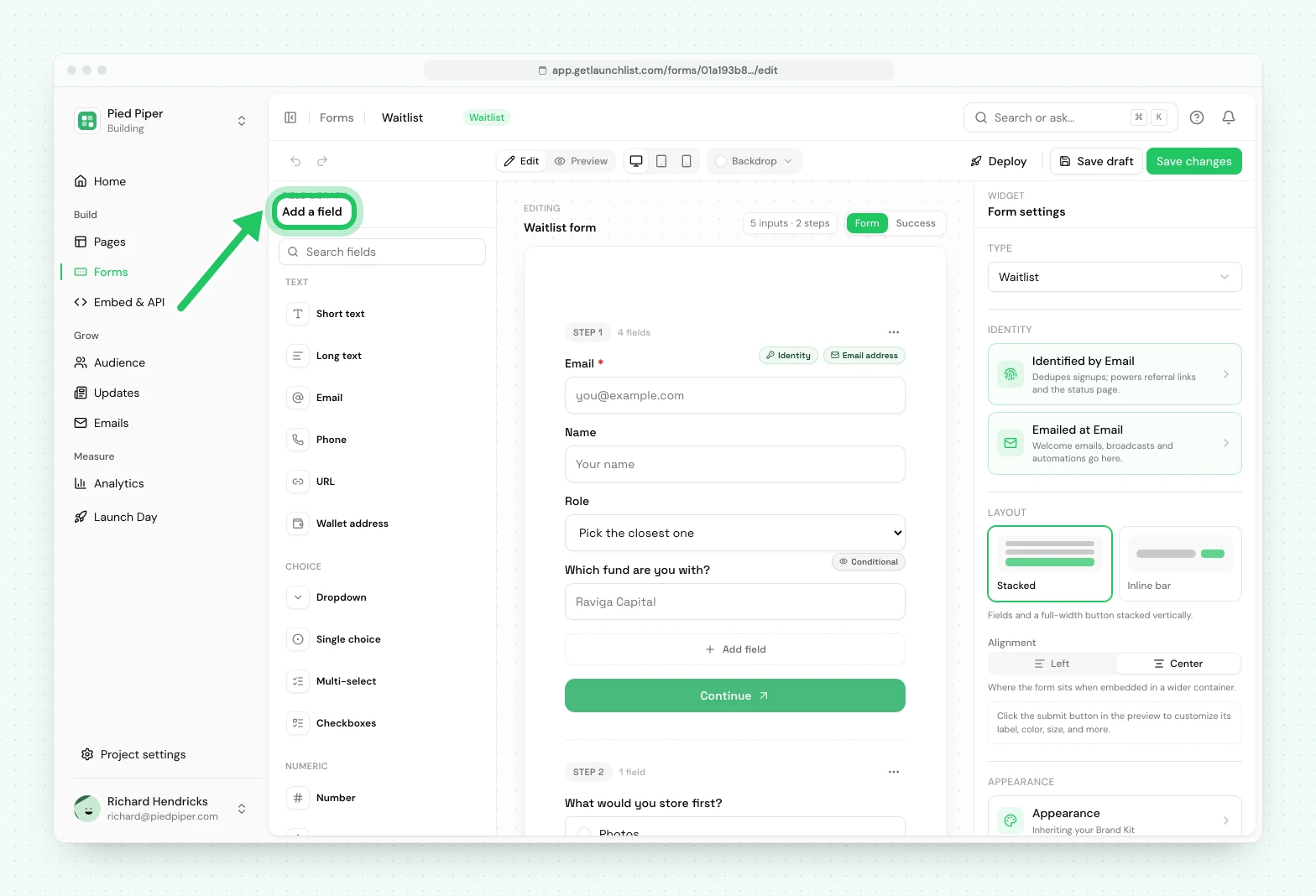
Each field has a label, an optional help line, and a required toggle. Drag to reorder.
Layout fields capture nothing: a heading or a divider is there to break a long form into
sections. A hidden field records where a signup came from without asking anyone. Its key doubles
as a query parameter, so ?invite_batch=wave2 on the link you share lands in that column, falling back to the Fallback value you set when the parameter is absent.
Width is per field: full, half or a third, so two or three short fields can share a row without you touching CSS.
How people are identified#
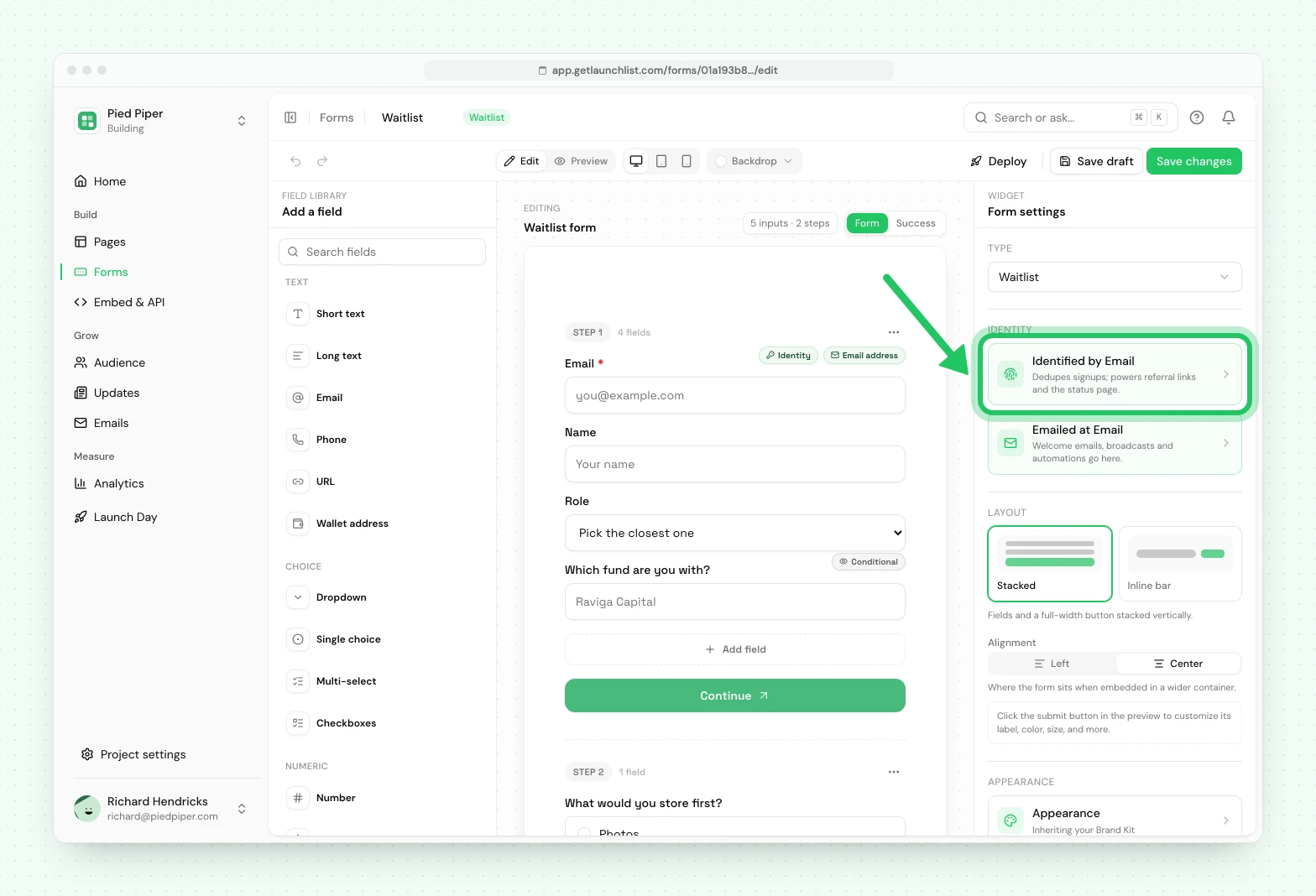
Every contact needs one identifier, and you choose what kind:
- Email: the common case
- Phone: for products where phone is the real handle
- Username: for communities and games
- Wallet: a wallet address, for onchain projects
- Custom: any other single scalar your product identifies people by
- None: anonymous interest, where a count is the point
Email, phone and wallet are picked up automatically when a field of that type exists, because each of those is unambiguously one globally distinct handle. Anything else you nominate yourself.
This is not cosmetic. The identifier is what deduplication runs on, so choosing it correctly is what stops the same person appearing twice.
Where signups are emailed#
Who someone is and where you email them are two separate things. If your form identifies people by phone, username or anything else and also has an email field, signups are emailed at the address they typed there, and Ask people to verify their email sends the verification link to that address.
The builder marks that field with an Email address badge, beside the Identity badge. On most forms both sit on the same field. If your form has more than one email field, open the one signups should be emailed at and switch on Contact email on its Logic tab. The others stay as plain answers and are never emailed.
Asking people to verify their email#
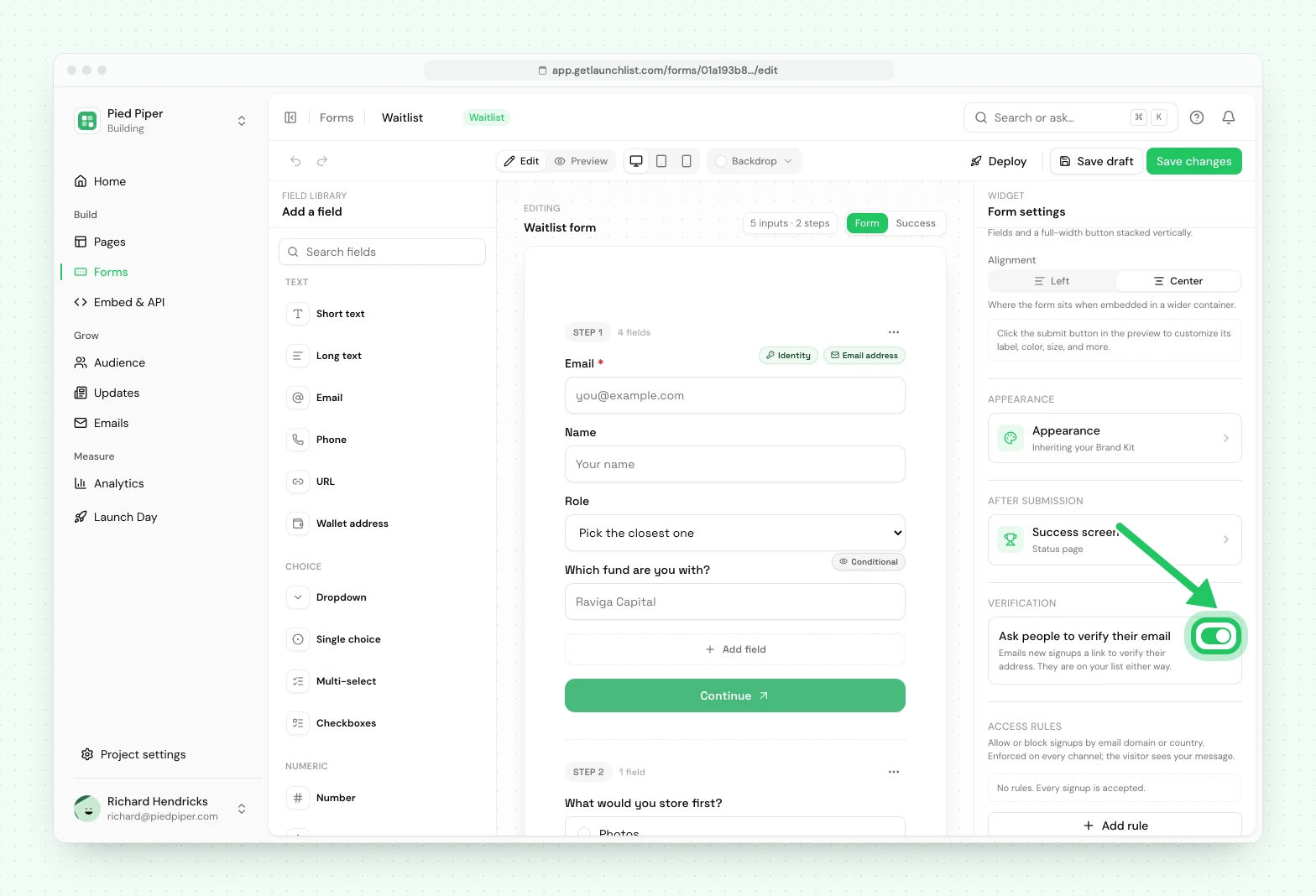
In Form settings, the Verification section has a switch, Ask people to verify their email. On, each new signup is emailed a link to verify their address. It is on by default for waitlist and marketing forms and off for survey forms, and a form with no email field cannot use it. Everyone who submits is on your list either way: verifying only proves the address. See email verification.
Validation#
Type-appropriate validation runs automatically: emails are checked for shape, phone numbers against the country's real format, URLs have to be URLs.
On top of that, an email field gets two live nudges as somebody fills it in. A domain typo like
gmial.com offers a one-tap correction, and on blur we check the address against our list of
disposable domains plus any deliverability we have already established for that domain.
Both nudges are advisory. Neither one blocks a submit.
If you keep your own markup and enhance it instead of embedding ours, you get the format rules, the typo correction and your own email domain rules, but not the on-blur deliverability nudge. Everything the server enforces at submit is identical either way.
What people see after they submit#
Three options, set per form in Form settings → After submission → Success screen:
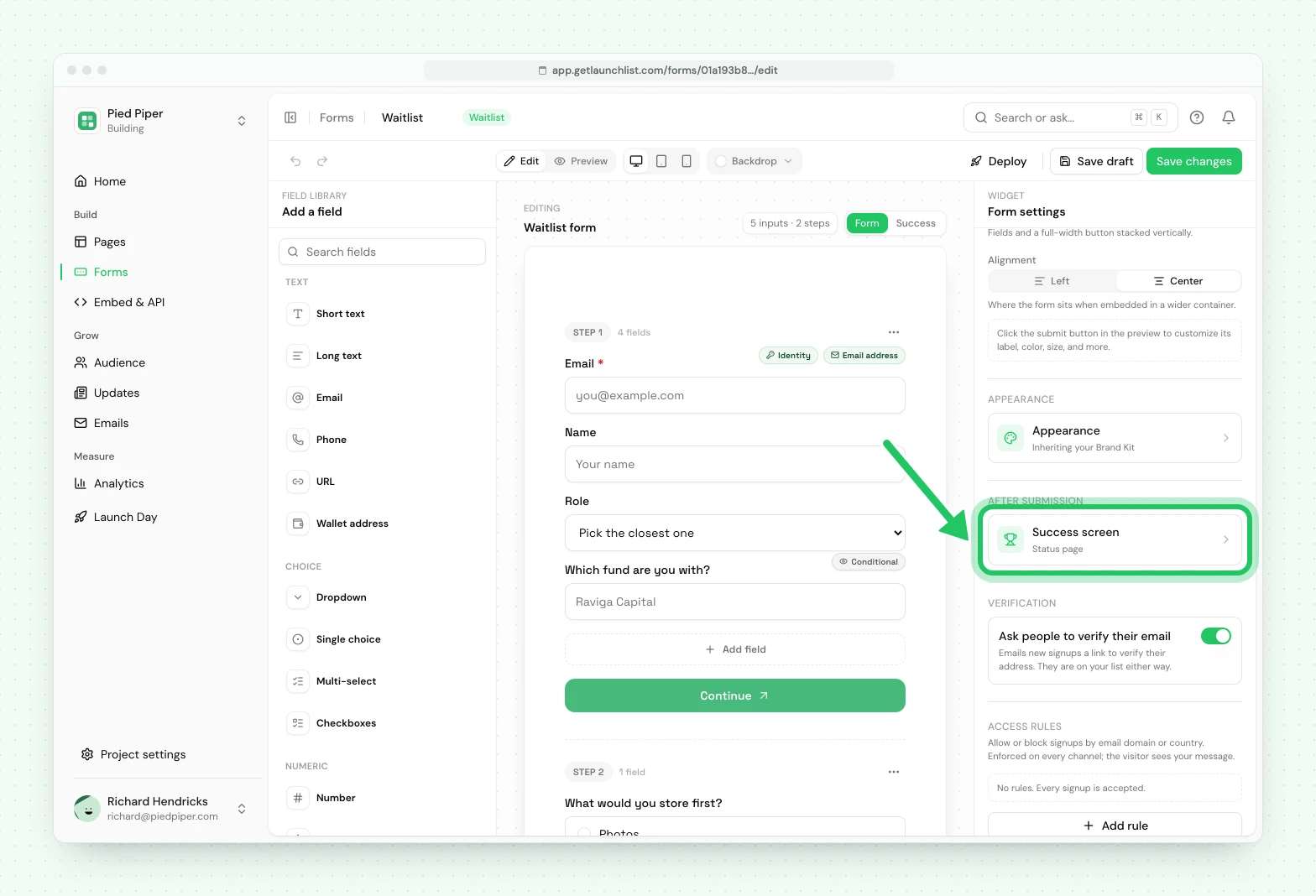
Status page (default). They land on their own page: position, referral link, verification state. This is usually the right choice, and it answers "am I on the list?" and "where is my link?" without anybody emailing you.
Inline. The form is replaced in place with a message you write. Good when the form is embedded in a designed page and a redirect would be jarring.
Custom URL. Your thank-you page, set as the Redirect URL. UTM parameters pass through, so your analytics still attributes the conversion.
You can open the result in a new tab, which keeps the host page in place. That helps when the form lives in a sidebar.
Reading survey answers#
What a survey form collected is read under Forms: press View answers on the survey's row in the list, or in the builder's top bar. It is not a tab of Audience.
Multiple forms#
A project can have several: a hero form asking for email only, a footer form, a longer survey after launch.
They all feed the same audience and dedupe against each other, so someone filling in two forms is one contact with two submissions.
Styling#
The form takes its look from your Branding settings: colors, font, corner radius, button style. Set it once and every form and every embed follows.
Embedded forms render inside a shadow root, so the host site's CSS cannot reach them. That is what makes an embed safe to drop into a site you do not control, and it is why restyling happens in Branding settings rather than in CSS on the other end.
Forms follow light and dark automatically, taking the scheme from the page they sit on.
Testing before you share#
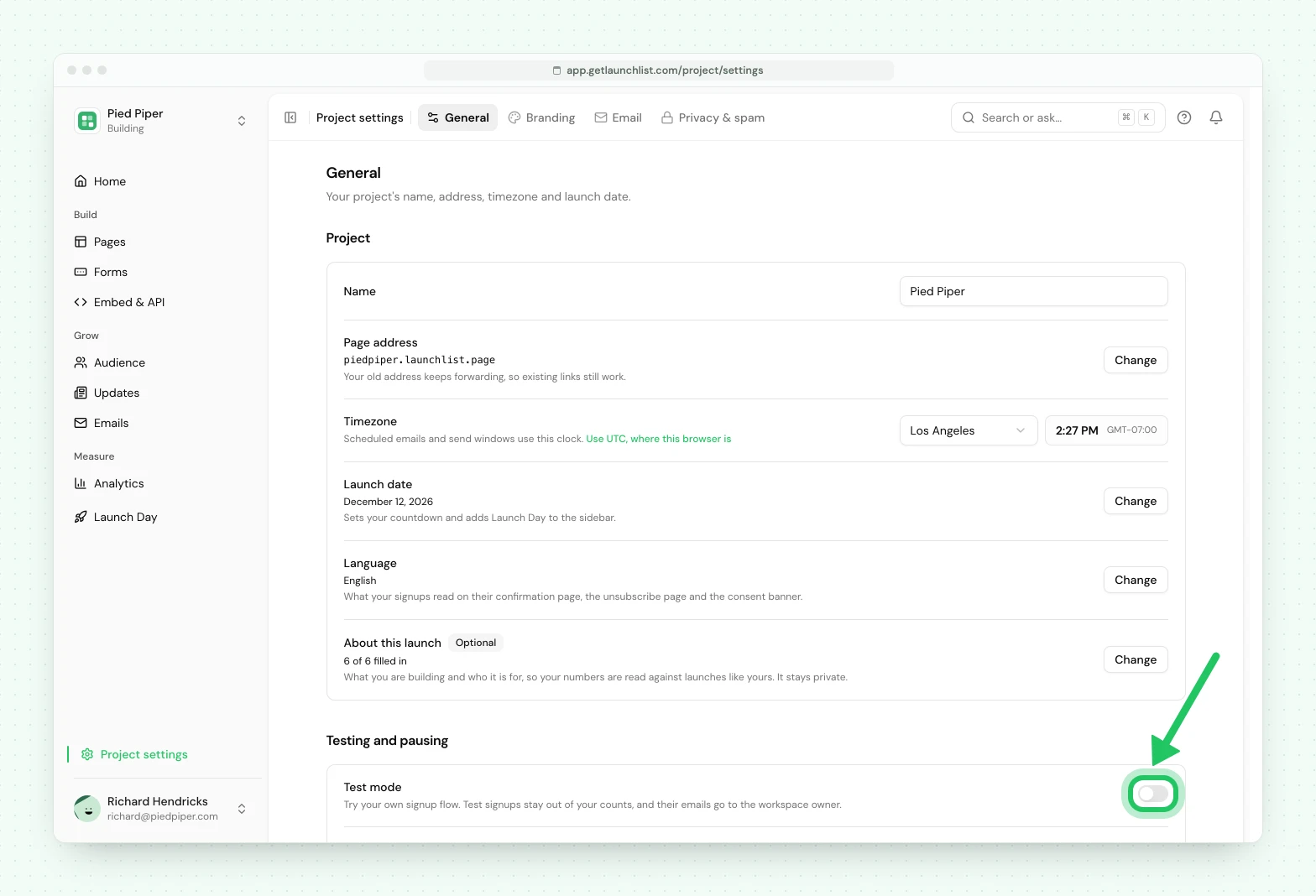
Turn on Test mode (Project settings → General) to submit practice signups that stay out of your live audience and your billable count.
Next#
- Every way to integrate: where to put the form
- Core concepts: forms, contacts and submissions
Common questions
Can I add custom fields to a waitlist signup form?
Yes, without writing any HTML. The builder has text, choice, numeric, date, boolean and layout fields, plus wallet addresses and hidden fields. Every embed on every site updates itself, so nothing needs re-pasting.
Can I run a waitlist without collecting email addresses?
Yes. A form can identify people by phone, username, wallet address, a custom scalar of your own, or by nothing at all. Email is the common case, not a requirement.
How many fields should a waitlist form have?
As few as possible, usually one. Every additional field costs signups. Ask for what you will genuinely act on before launch, and collect the rest later with a survey.