

Ask & the command bar
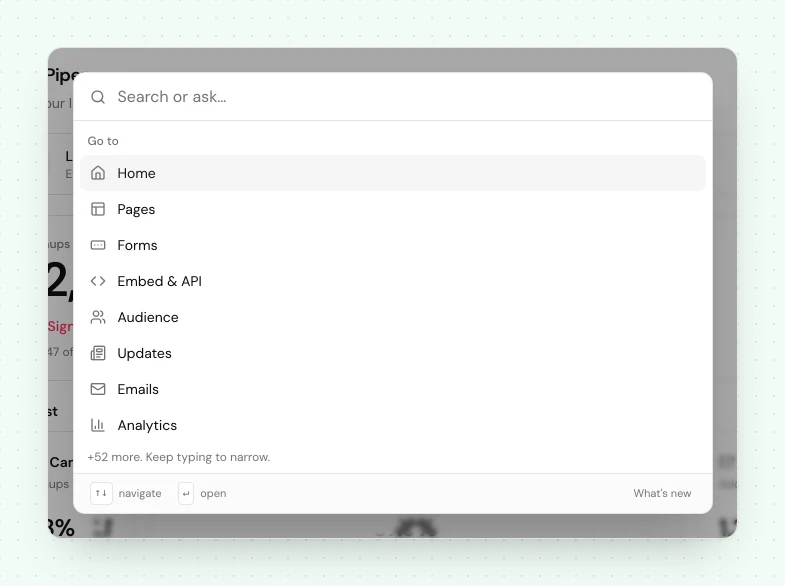
Press ⌘K anywhere in the dashboard to jump to any page, reach a human, or ask a question and get an answer in place, with the sources it used.
Press ⌘K (Ctrl-K on Windows and Linux) anywhere in the dashboard to open the command bar. It is the fastest way around LaunchList, and the fastest way to an answer.
What it does#
- Jump to any page: start typing a destination and go straight there, no clicking through menus.
- Ask a question: type a full question and press Enter on the Ask AI row. It answers in place, right there in the bar, without sending you to a separate chat.
- Reach a human: when you would rather talk to support, choose Contact us.
- See what shipped: choose What's new to catch up on the latest changelog without leaving what you were doing.
Ask#
Type a question ("how do referral rewards work?", "what does locked mean on a contact?") and Ask AI
answers from LaunchList's own documentation, API reference, plans, changelog, legal pages and
blog. Every answer lists the sources it used, so you can open the underlying page and read the
full detail.
Because Ask draws on the same docs you are reading now rather than guessing, its answers stay current with the product, and you can always check its work against the sources it cites.
Ask is free on every plan, Free included.
Next#
- Overview: what LaunchList is
- Quickstart: from signup to a live waitlist
Common questions
How do I open the command bar?
Press ⌘K on a Mac or Ctrl-K on Windows and Linux, anywhere in the dashboard. Start typing to jump to a page, or type a full question to ask.
Does Ask cost anything?
No. Ask is free on every plan, Free included.
Where do the answers come from?
LaunchList's own documentation, API reference, plans, changelog, legal pages and blog. Every answer shows the sources it drew from, so you can open the underlying doc and read more.