

How to add a waitlist to an app built with Lovable, Bolt, v0 or Replit
Add a LaunchList signup form to an app built with Lovable, Bolt, v0 or Replit by pasting one prompt into the builder's chat, or send signups from a server function with the REST API.
Lovable, Bolt, v0 and Replit write real code, so the builder can put the LaunchList form into your app for you. You give it a prompt with your form's snippet inside; it adds the loader script once and the form where you asked. Signups land in your LaunchList project like any other.
Pick a method#
| Method | Runs in | Use it when |
|---|---|---|
| Paste the prompt | The browser | Start here. The builder adds the LaunchList form to your app. |
| Call the API from a server function | Your app's server | Your app keeps its own signup form and sends each signup on to LaunchList. |
| Connect the MCP server | The builder's agent | Your builder connects to remote MCP servers and you want it to look up your form itself. |
| Link to your launch page | launchlist.page |
You want no LaunchList code in the app at all. |
Every method runs the same pipeline once a signup lands: deduplication, referral credit, a trust verdict marking it real or fake, and the verification email if your form asks for one.
Before you start#
You need a LaunchList project with at least one form. If you signed up and skipped setup, your project already has a waitlist form.
Paste the prompt#
Copy your snippet#
- In LaunchList, open Embed & API and choose the Your website tab.
- Under What is your site built with?, choose Something else. Pick your form if you have more than one.
- Copy the Inline snippet. It is two lines: a
<script>that loads the form and a<div>that marks where it goes.
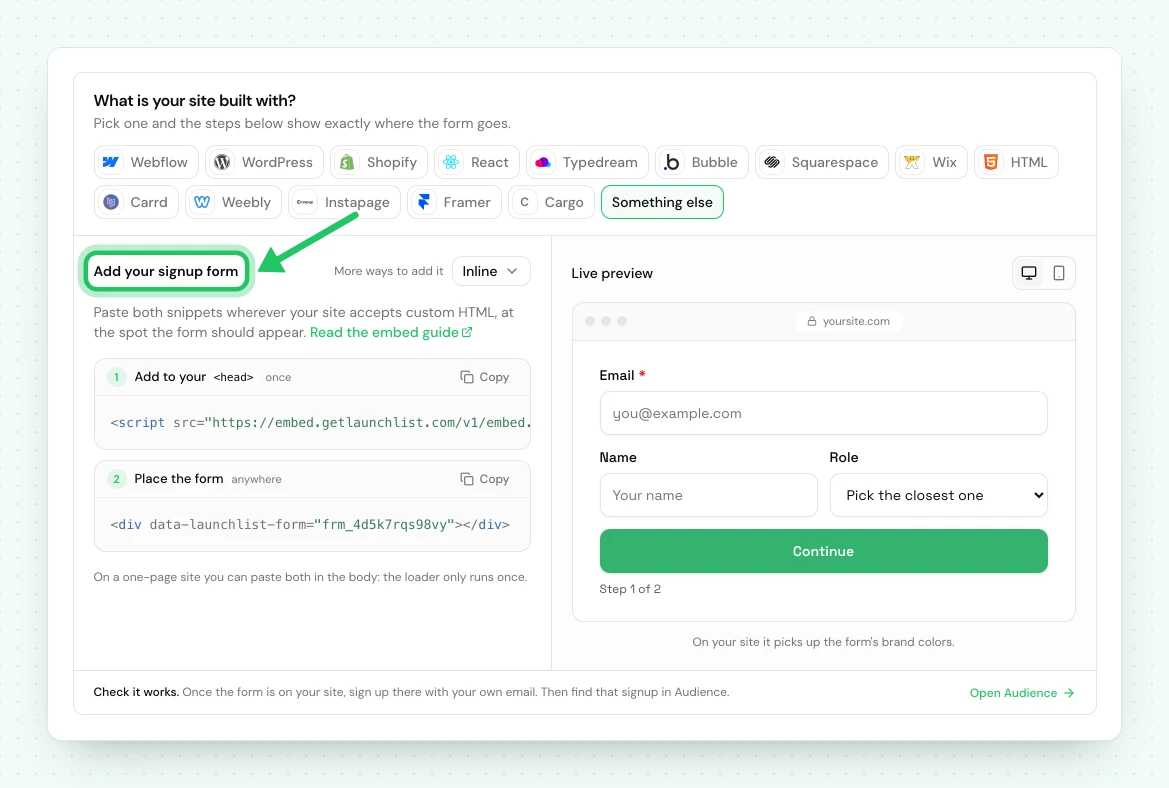
If you are still in first-run setup, the last step has an AI tab with this same prompt, your snippet already inside it. Copy it from there and skip to your builder below.
The prompt#
Paste this into your builder's chat, with your own two lines in place of the example in the middle:
Add my LaunchList waitlist form to my site.

Put it where visitors should sign up, usually the hero or a dedicated waitlist section. Paste this HTML exactly as written:

<script src="https://embed.getlaunchlist.com/v1/embed.js" async></script>
<div data-launchlist-form="frm_8Kd2Qm4Rp9"></div>

The form loads its own styles and handles submissions, so do not rebuild or restyle it. If my site is a React or Next.js app, load the script once in the document head and render the div where the form should appear.
frm_8Kd2Qm4Rp9 is an example ID. A prompt with it collects nothing, so always paste your own.
The form renders inside a shadow root, so the app's CSS cannot restyle it. Change its look from Branding settings in LaunchList, not in the builder.
Lovable#
- Paste the prompt into the Lovable chat. If you want the form somewhere other than the hero, say where at the end ("put it under the pricing section").
- Lovable apps are React apps, so the prompt's last sentence applies: the
<script>line belongs inindex.html, inside<head>, and the<div>in the component that should show the form. Check both landed there. - If the app started from Lovable's own Waitlist template, it already has a form that saves emails to a table of its own. Ask Lovable to replace that form with the LaunchList one, so signups do not split between two lists.
- Publish, then sign up once on the published address.
Check the form on the published app as well as in the preview. The preview runs on its own address, and it is the published app your visitors see.
Bolt#
- Paste the prompt into the Bolt chat and say where the form should go.
- Check the
<script>line is in the project'sindex.html(or the root layout, if Bolt made a Next.js app) and the<div>is in the component that renders the signup section. - Bolt sets up Supabase as its database. If it already built a waitlist that inserts emails into a Supabase table, ask it to remove that form, or to send each signup on to LaunchList from a server function instead.
- Deploy, then sign up once on the deployed address.
v0#
- Paste the prompt into the v0 chat. v0 builds Next.js apps, so the prompt's last sentence applies.
- In a Next.js app the script is best loaded with
next/scriptin the root layout and the form mounted from a client component. If the form does not appear, ask v0 to follow the Next.js steps in the React guide: load the script with theafterInteractivestrategy, then callLaunchList.mount()with your form's ID in auseEffect. - Deploy to Vercel, then sign up once on the production address.
Replit#
- Paste the prompt into the Replit Agent chat and say which page should show the form.
- Replit apps vary: a plain HTML page, or a React front end with a server behind it. Check the
<script>line is in the page's<head>(in a React app,index.html) and the<div>is where the form should appear. - Publish, then sign up once on the published address, not the development preview.
Call the API from a server function#
Use this when your app keeps its own signup form, built by the builder, and you want each signup in LaunchList too. The signup goes from your server to LaunchList, so the API key never reaches a browser.
Create a key#
- In LaunchList, open Embed & API → Developers → API keys and press New API key.
- Name it after the app, choose Full access (creating a contact needs
contacts:write), and pin it to the project the app collects for. - Press Create key and copy it. It is shown once.
Store it in the builder's secrets for the server side of the app, under a name such as
LAUNCHLIST_API_KEY:
| Builder | Where the server code runs | Where the key goes |
|---|---|---|
| Lovable | A Supabase Edge Function (Lovable Cloud or Supabase) | The function's secrets. Check the name Lovable shows. |
| Bolt | A Supabase Edge Function | The Supabase project's Edge Function secrets |
| v0 | A Next.js route handler or server action | The project's environment variables (Vercel) |
| Replit | The app's own server (Node, Python…) | Replit's Secrets |
Ask the builder to send each signup#
The request names your project by its prj_ handle. Find it with the same key: GET /v1/projects
lists every project the key can reach (Projects and forms). Then ask the
builder, with your handle in place of the example:
When someone submits the waitlist form, send the signup to LaunchList from the server, never from the browser. Make a POST request to https://api.getlaunchlist.com/v1/contacts with the header "Authorization: Bearer " followed by the LAUNCHLIST_API_KEY secret, the header "Content-Type: application/json", and the JSON body {"project": "prj_7Qk2mN4pR8", "email": the submitted address, "referred_by": the ref parameter from the page address, if there is one}. Show the visitor the position from the response.
The call it should write looks like this:
// Server side only: a Supabase Edge Function, a Next.js route handler or an Express route.
const response = await fetch('https://api.getlaunchlist.com/v1/contacts', {
    method: 'POST',
    headers: {
        Authorization: `Bearer ${process.env.LAUNCHLIST_API_KEY}`,
        'Content-Type': 'application/json',
    },
    body: JSON.stringify({
        project: 'prj_7Qk2mN4pR8',
        email: submittedEmail,
        referred_by: refFromPageAddress ?? undefined,
    }),
});

const contact = await response.json();
// contact.position is their place in line; contact.referral.code is their code.
In a Supabase Edge Function the secret is read with Deno.env.get('LAUNCHLIST_API_KEY') rather than
process.env.
A new signup returns 201, someone already on the list returns 200 with their existing contact, so
a form that submits twice never creates a duplicate. Every field is in
Create a contact.
Connect the MCP server#
LaunchList's MCP server is at https://mcp.getlaunchlist.com. A builder whose agent can connect to a
remote MCP server can call list_projects and get_project to find your form's frm_ handle, then
add the form with the prompt above. Lovable lists custom MCP servers among its connectors; check your
builder supports a remote server that signs in with OAuth or takes a bearer key.
How to sign in, and what each tool can do, is in Connect your client.
Link to your launch page#
Every LaunchList project has a hosted launch page at your-slug.launchlist.page, or on your own
domain on a paid plan. Ask the builder to make the app's signup button a link to it, and signups
happen there with no LaunchList code in the app. See the launch page.
Publish and test#
Open the published app, not the builder's preview, and sign up with a real address. The signup appears in Audience, and the visitor sees what your form's success behavior says.
If something is not working#
| What you see | What to do |
|---|---|
| The form shows in the preview but not on the published app | Publish again, then check the <script> line is in the published index.html or root layout, not only in a component the preview happened to load. |
| The form disappears after moving to another page of the app | The route change replaced its element. Ask the builder to call window.LaunchList.mount() in the component that renders the form, or keep data-launchlist-form on the div and call window.LaunchList.refresh() after each route change. See React and SPAs. |
LaunchList is undefined in the console |
The script had not loaded when the code ran. Use optional chaining, window.LaunchList?.mount(…), or mount once the script's load event fires. |
The console says it refused to load or connect to embed.getlaunchlist.com |
The app sets a Content Security Policy. Allow https://embed.getlaunchlist.com in script-src, connect-src and font-src, and 'unsafe-inline' in style-src. The full list is in the HTML guide. |
| The builder made its own form that looks like yours | It rebuilt the form instead of pasting the snippet, so signups go to its own table. Paste the prompt again: it asks for the HTML exactly as written. |
| Two forms render on one page | mount() ran twice, usually React's StrictMode in development. It is safe; if you see two in production, look for a duplicate effect. |
| The CAPTCHA fails in the preview but works on the published app | Your CAPTCHA keys only accept the hostnames you listed with your provider. Add the preview address there too, or test on the published app. |
The API answers 401 |
The key is missing, revoked, or not sent as Authorization: Bearer llk_…. Check the secret's name matches the code. |
The API answers 403 with insufficient_scope |
The key is Read-only. Create a Full access key. |
| Referral links do not credit on your own form | Pass the page's ref value as referred_by. |
Next: React and SPAs · create a contact with the API · every way to integrate
Common questions
Can an AI app builder add the LaunchList form for me?
Yes. Paste the prompt on this page, with your own snippet in it, into the builder's chat. It adds the loader script to the app's document head and the form's div where you asked. Then sign up once on the published address, not only in the preview.
Can my app call the LaunchList API from the browser?
No. An API key in browser code is public. Call POST /v1/contacts from a server function, such as a Supabase Edge Function, a Next.js route handler or a Replit backend, with the key stored as a secret. To collect signups in the browser, use the embed, which is built to be public.
Why does the form disappear when I move between pages of my app?
Apps from these builders are single-page apps, so the element the form sits in is replaced when the route changes. Ask the builder to call window.LaunchList.mount() in the component that renders the form, or keep the data-launchlist-form attribute on the div and call window.LaunchList.refresh() after each route change.