

Broadcasts
Send a one-off email to your whole audience, a segment or a tag, with suppression enforced at send time so nobody who opted out can slip through.
A broadcast is a one-off email to your whole audience or any segment: announcements, launch dates, invite waves. For sends that run themselves whenever an event happens, see automations.
Broadcasts are available on the Collect, Launch and Grow plans, within your monthly email allowance, which is set by your plan and size. A Free project can write and preview a broadcast, but cannot send one. Confirmation, verification, welcome and invitation emails send on every plan and never count toward the allowance.
Sending one#
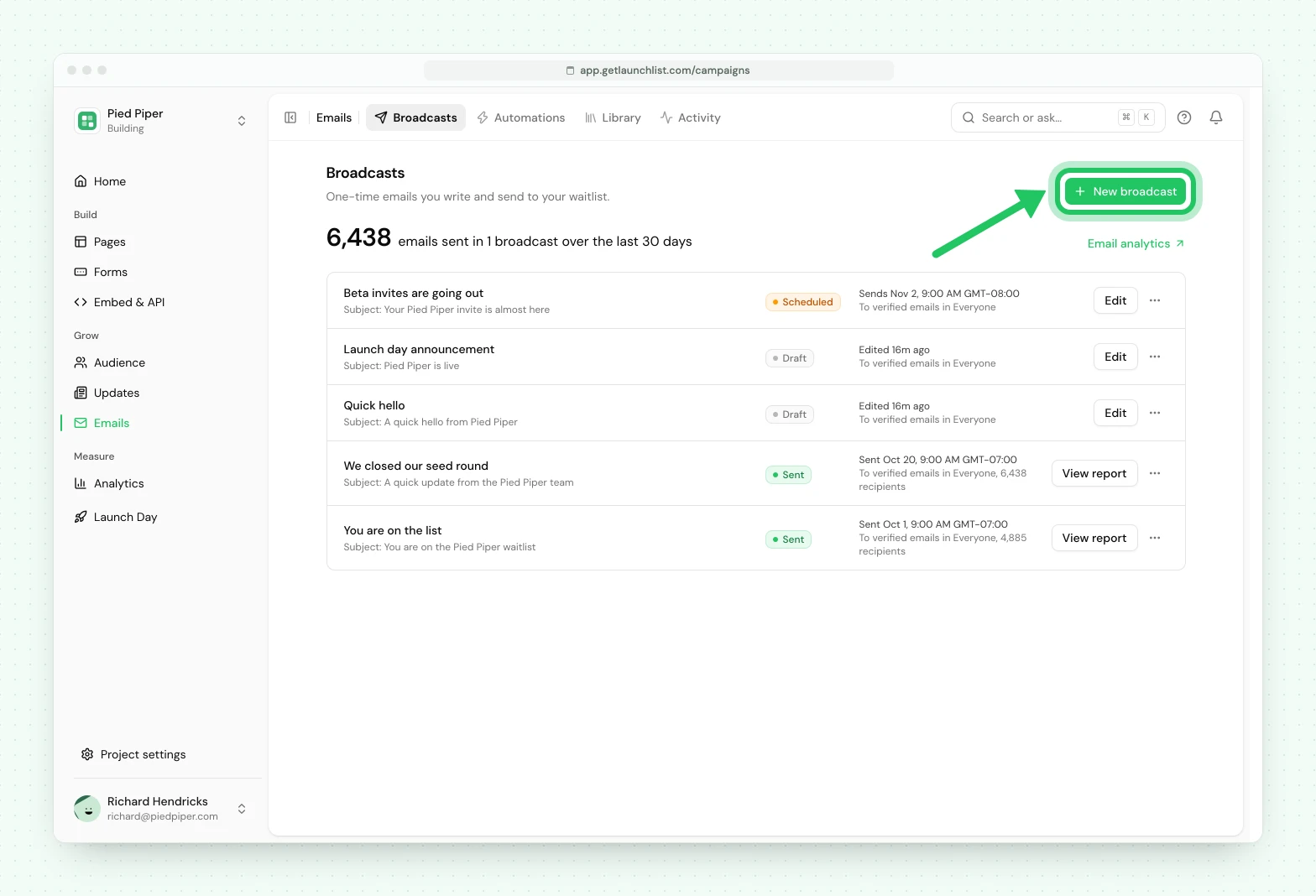
- Open Emails → Broadcasts and press New broadcast.
- Under Send to, choose Everyone, a saved segment or a tag, and under Who in this audience choose who among them it goes to (see Who it goes to).
- Write it. The composer previews the real rendered email as you go.
- Press Send a test to yourself.
- Press Send, then choose Send now or Schedule.
Merge tags let you personalize: someone's name, their position, their referral link, their referral count. A tag that can be empty for some people needs a fallback written into it, and the pre-send check will stop you if one is missing, so nobody receives "Hi ,". The same check catches a name that looks fake rather than missing, "test" or a placeholder someone typed into a form, and greets that person with the fallback too rather than repeating it back to them.
Don't send to#
Under Don't send to, you can leave people out: anyone in one or more segments, anyone carrying one or more tags, or anyone who already received an earlier broadcast. All three stack, and they narrow the audience you picked above rather than replace it.
Excluding an earlier broadcast is how you build a follow-up without re-mailing people who already heard from you: address this send to the same audience, then exclude the broadcast you sent before. Segments covers building "received broadcast X at least N days ago" as its own reusable filter, for a follow-up on a delay rather than an outright exclusion.
Who it goes to#
Everyone who signs up is subscribed, but not everyone has verified their email. Below Send to, each broadcast has a Who in this audience choice that says which of the people it could reach get it:
- Verified email: people who clicked the link in your verification email.
- Waiting for verification: people we sent a link to verify their email who have not clicked it yet, including anyone whose link expired. These are the people in the Waiting for verification view.
- Verified or not: everyone subscribed, verified or not. This is the only choice that reaches people who were never asked to verify: signups from a form that does not ask, from the API, and people you imported. Their Status reads Not verified.
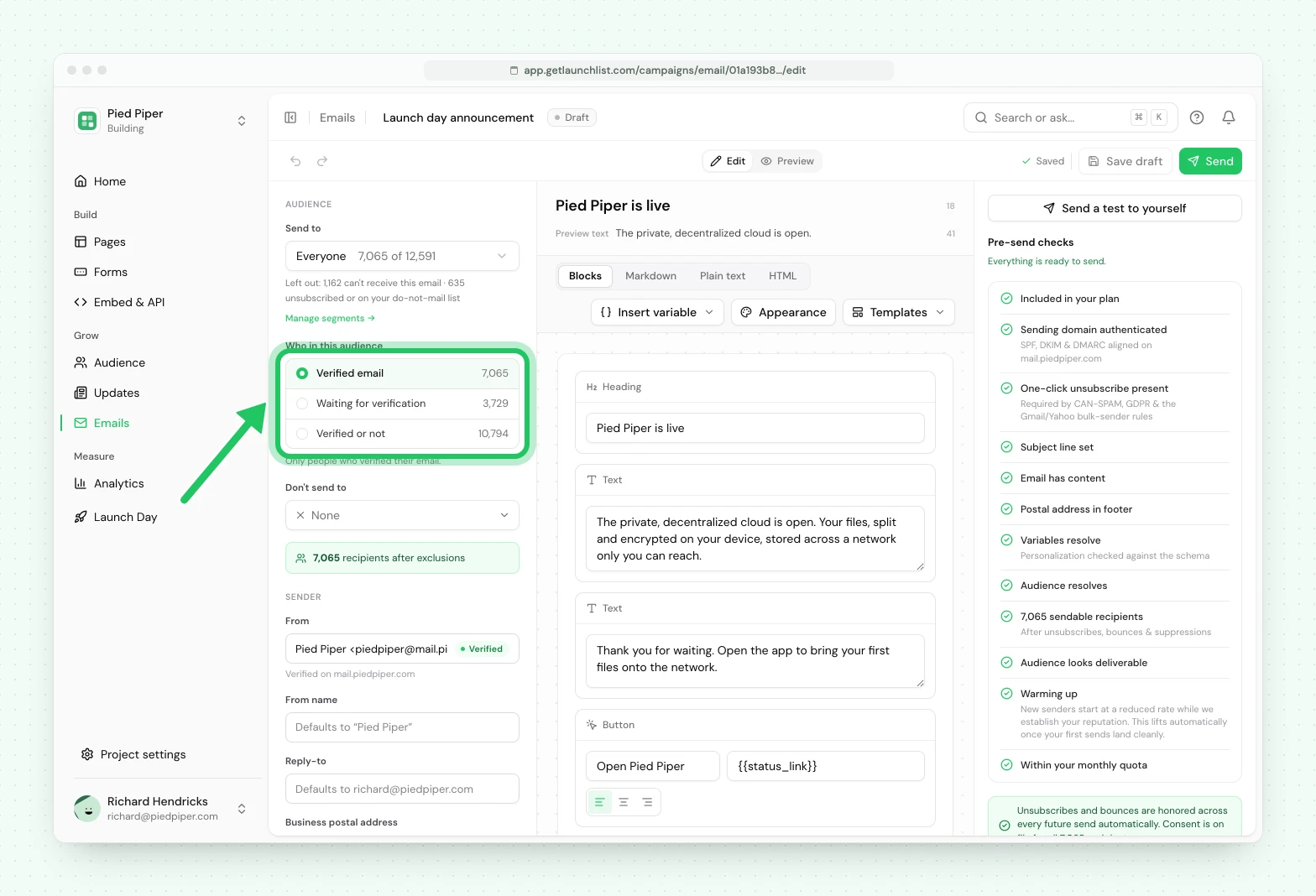
Each choice shows how many people it reaches, and Send to shows the same number for the choice you picked. A new broadcast starts on Verified email when every form in the project asks people to verify their email, and on Verified or not otherwise. You can change it until you send.
If your choice includes people who have not verified, the send dialog says how many (on Verified or not, that counts both the people waiting and the people never asked), and offers to check their emails with credits first. See email verification.
How it goes out#
By default a broadcast sends All at once. Under Delivery, you can set Pace to In batches instead: pick how many people get it every hour or every day, oldest signups first, until everyone in the audience has it. A batched broadcast never sends to the same person twice, and you can pause it mid-run, in which case emails already sent stand and nobody else gets it until you resume.
If too many of the addresses a batched broadcast has reached so far bounce or mark it as spam, LaunchList pauses it for you before the next batch goes out, and the broadcast shows why. Fix the list, either by removing the bad addresses or narrowing the audience, then resume it yourself; it does not restart on its own.
Your first emails go out gradually#
Until your sending record is established, a broadcast to more than 50 people goes out gradually, even if you chose all at once: 50 people first, then more each hour, up to 1,000 an hour. The check before sending tells you how long yours will take before you press the button. Automation emails count toward the same hourly total, so a step that hits it waits for the next hour rather than being skipped.
This keeps a first send from reaching an inbox provider all at once, which is how a new sender gets treated as spam. It lifts on its own once your first sends land cleanly.
Who actually receives it#
Suppression is enforced at send time, not when you pick the audience. Anyone who unsubscribed, hard-bounced, or marked a previous message as spam is skipped even if they match your filter.
You cannot accidentally mail somebody who opted out, and there is no state where a stale segment lets one slip through.
The gate is subscription, not proof of ownership. A contact counts as sendable once they are subscribed to this project, and everyone who signs up is, whether or not they verified their email. Your Who in this audience choice then narrows that to verified people or people still waiting to verify, or leaves it at everyone subscribed. Someone you imported and said you were not sure about is Not subscribed, and no broadcast reaches them until you mark them as subscribed. The count shown in the composer is the same query the send itself runs, so the preview and the send can never disagree.
Every broadcast carries a working unsubscribe link and the one-click unsubscribe headers that Gmail and Yahoo require. That is not optional and cannot be turned off, even for a plain-text email.
An address that is undeliverable or disposable is skipped rather than sent to, so it cannot damage your sending reputation. Nothing is held back on a guess: an address we are unsure about is still sent to.
Plain text#
Alongside the block editor, a broadcast can be written as plain text: no images, no HTML, and no open or click tracking, so it reads like a note from a person rather than a marketing email. Use it for a founder update or a "can I ask you something" message. Merge tags still work, and it still carries the unsubscribe line and your postal address in text, exactly as a designed email does.
Before it goes out#
The composer runs a pre-send check and will not let a broadcast leave with a problem in it. It covers the plan, the subject, the content, your postal address in the footer, whether every merge tag resolves, whether the audience still exists, how many people it reaches, how many of them have not verified their email, and whether those recipients look deliverable enough to send safely.
If the send is larger than what is left of your monthly allowance, the dialog shows how many extra emails it needs and what they cost, at $3 per 1,000, before you press the button. The broadcast goes out only once you approve that charge, and nothing is ever charged automatically. A scheduled broadcast that is short of allowance when its time comes pauses and tells you, rather than charging. See extra campaign emails.
Saved emails#
Open Templates in the composer and choose Save as template to keep an email under Library → Saved emails, or press New saved email in the Library to write one there. Reuse it in another broadcast or an automation step. A saved email carries your project's brand settings, so a change to your logo or colors updates every one rather than needing them re-edited. New projects are seeded with a small library of ready-written starters covering the usual waitlist moments, offered as a starting point when you create a broadcast.
Email logs#
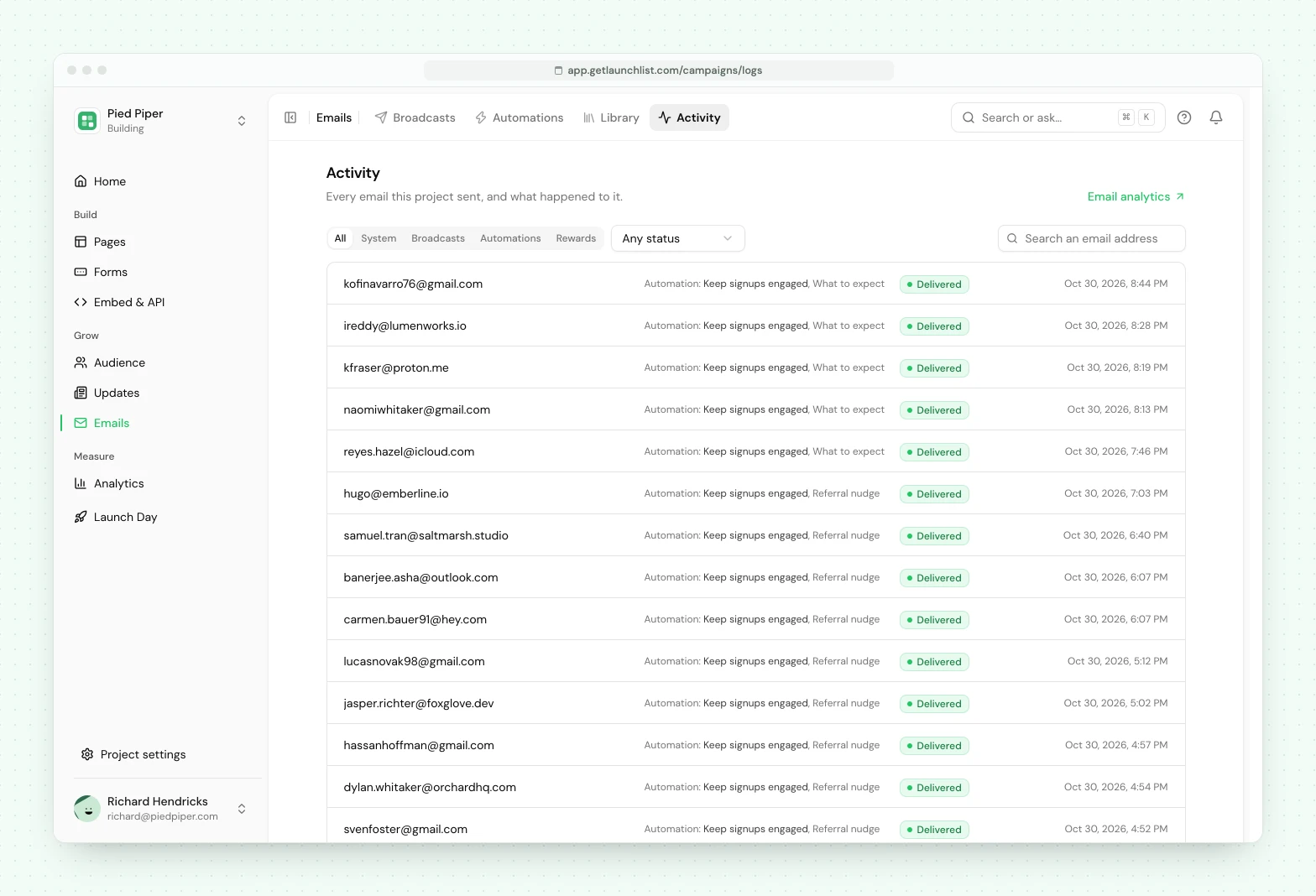
Every send is logged: who, when, and what happened to it (sent, delivered, bounced, marked as spam). It is under Emails → Activity, where you can filter by source and status or search an address, and it is the first place to look when someone says they did not get something.
Next#
- Automations are flows that send themselves on an event
- Email verification is the one email that is not a campaign, and what it proves
- Your sending domain is where all of it comes from
- Importing a list, and who an import subscribes
- Draft, test and send broadcasts from code with the Broadcasts API or the MCP tools, both running the same prepare-then-confirm send as the dashboard
Common questions
Can I email my waitlist from LaunchList?
Yes, on the Collect, Launch and Grow plans. Broadcasts send a one-off email to your whole audience, a segment or a tag, and on Launch and Grow automations send on real events too. A Free project can write and preview a campaign, but cannot send one.
Who is excluded from a broadcast?
Anyone unsubscribed, bounced or marked as a complaint is suppressed automatically, and suppression is enforced at send time rather than when the audience is chosen. Anyone not subscribed is left out too. You can also leave out anyone in a segment or tag, or anyone who already received an earlier broadcast, with "Don't send to".
Can I email people who have not verified their email?
Yes. Everyone who signs up is subscribed, whether or not they verified. Below Send to, each broadcast has a Who in this audience choice of Verified email, Waiting for verification (people sent a verification link who have not clicked it) or Verified or not. Only Verified or not reaches people who were never asked to verify. A new broadcast starts on Verified email when every form asks people to verify, and on Verified or not otherwise.
Why is my first broadcast going out in batches when I chose all at once?
Your first emails go out gradually. Until your sending record is established, a broadcast to more than 50 people starts with 50 and grows each hour, up to 1,000 an hour. The check before sending tells you how long yours will take.
Can I preview an email before sending it?
Yes. The composer previews the real rendered email, and you can send a test to yourself or another member of your workspace.
Can I send a broadcast in batches instead of all at once?
Yes. Set Pace to "In batches" and set how many people get it every hour or every day. Nobody ever gets a batched broadcast twice, and LaunchList pauses it automatically if too many addresses in the batches sent so far bounce or mark it as spam.