

Quickstart
A hand-held walkthrough from signing up to a live waitlist collecting real signups, with a screenshot at every step so you never lose your place.
By the end of this you will have a live waitlist at a public URL, a real test signup sitting in your audience, and a referral loop you have seen working. Signing up already did the heavy lifting: a new account arrives with a workspace, a project, a signup form and a launch page wired together, so most of the work below is choosing where people sign up and turning it on.
Follow it top to bottom. Each step says what to click, what you should see next, and what to do if you get stuck.
1. Get your bearings#
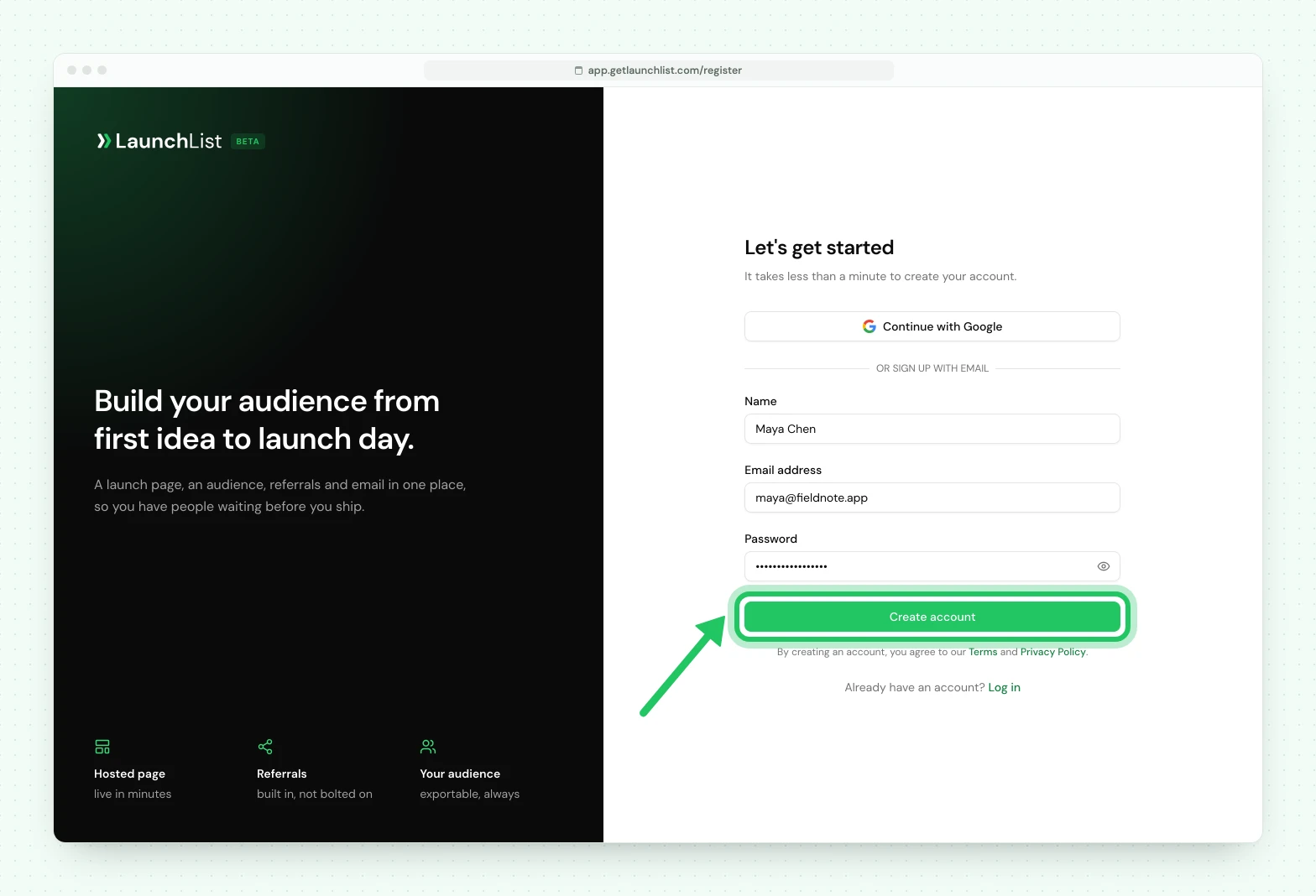
Signing up takes you through a short first run (name your project, choose where people sign up, pick a starting page, then share it and watch for your first signup). If you choose your own site, the last two screens are the form's look and the code to paste, and the screen waits for the first signup through it. When it finishes you land on your dashboard, Home. The left sidebar is how you move between Pages, Forms, Embed & API, Audience, Updates, Emails, Analytics and Project settings, and your project name sits at its top. Once you turn on test mode (step 4), a banner appears across the top of every screen.
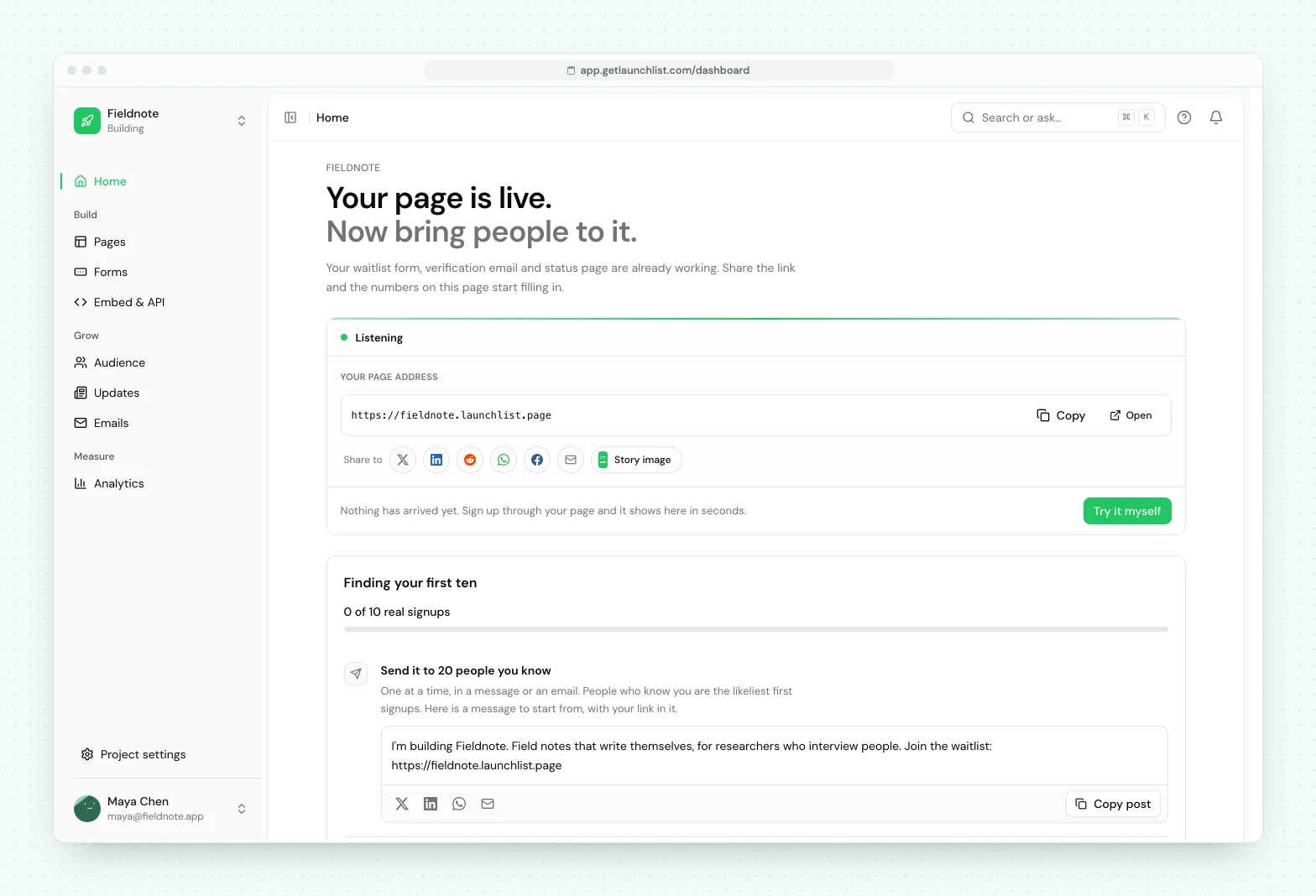
You do not need to create anything to begin: the project, form and page already exist. If you run an agency or want a second product later, you can add another project from the project switcher, but one is all you need for now.
2. Build your launch page#
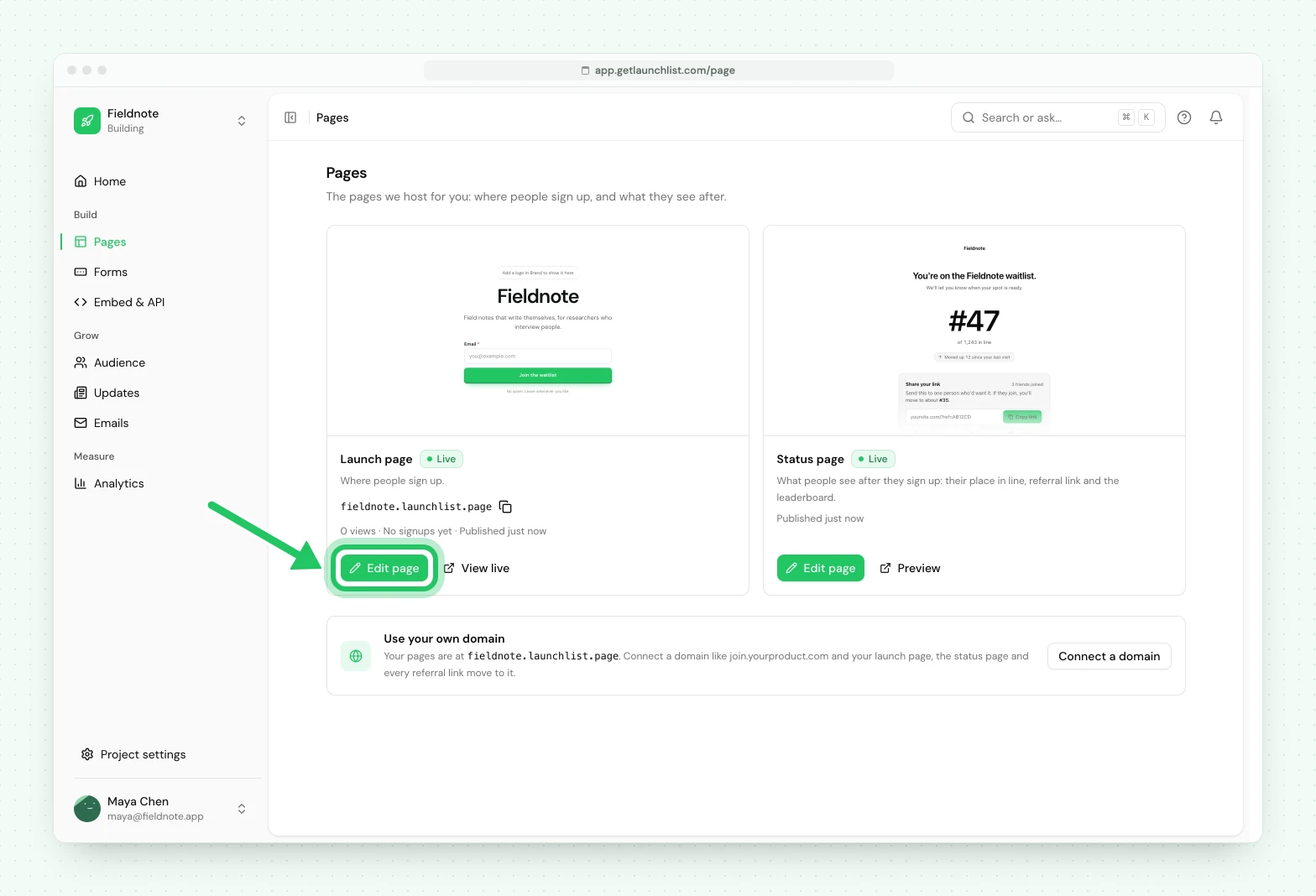
This is the page people will see and sign up on. Open Pages from the sidebar, then Edit page.
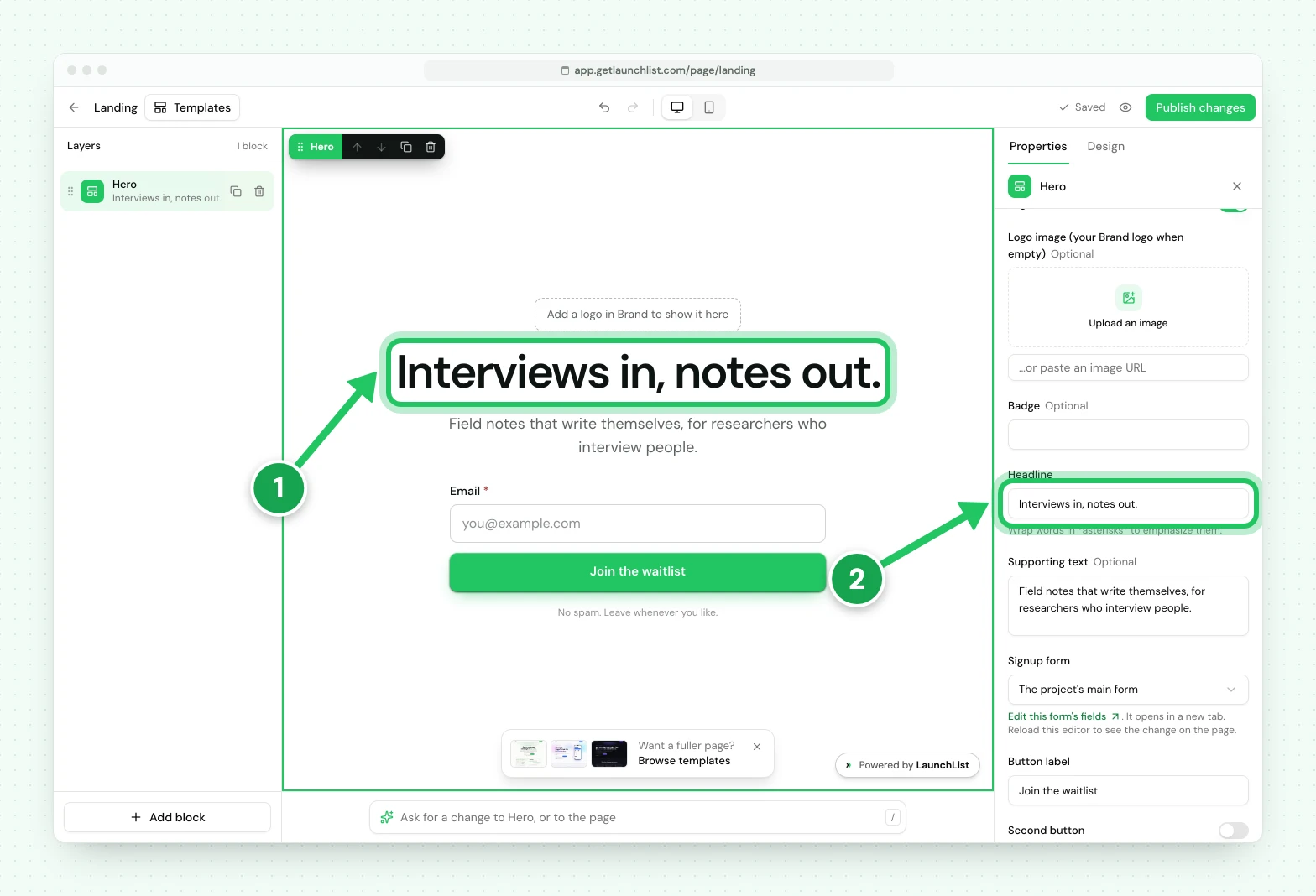
You are editing a real, working page from the first second: there is no blank canvas. Make it yours:
- Click the page (1 in the picture below) to select its section. Its words open in Properties, on the right.
- Headline (2): type what you are launching. Keep it to a few words: this is the first thing a visitor reads.
- Supporting text: add one sentence on why they should care.
- Button label: "Join the waitlist", "Get early access", whatever fits.
If you get stuck, every change saves to a draft. Nothing is public until you publish in the next step, so you cannot break anything a visitor would see.
3. Publish, and get your link#
Press Publish in the top right (once the page is live it reads Publish changes). It opens the publish panel, which shows the page's address and what will change. Press Publish there, and your page goes live at a public URL.
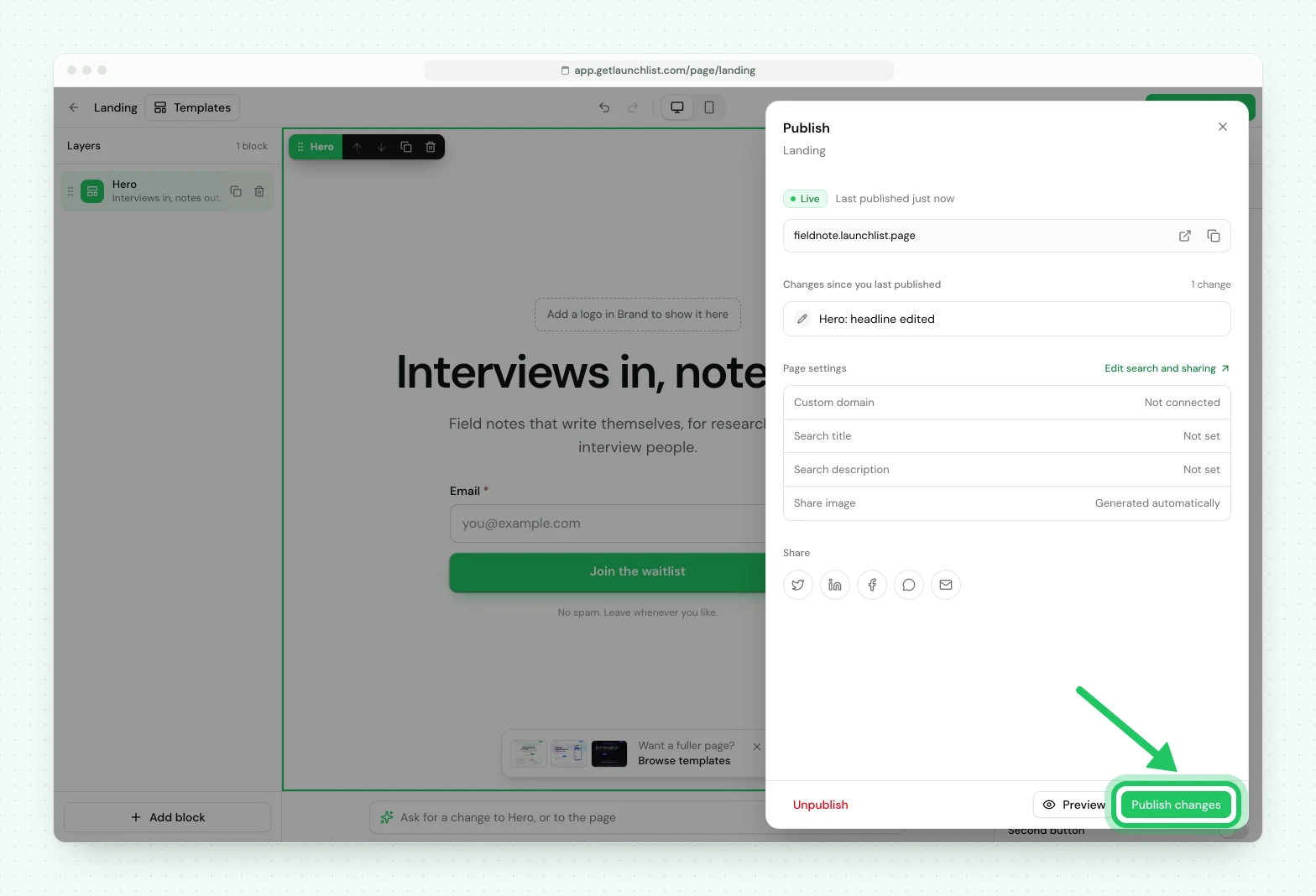
Copy that link. That is the thing you share: in a tweet, a DM, an email, a Product Hunt post. Anyone who opens it can sign up, on any device.
4. Send yourself a test signup#
Before you tell anyone, prove it works end to end.
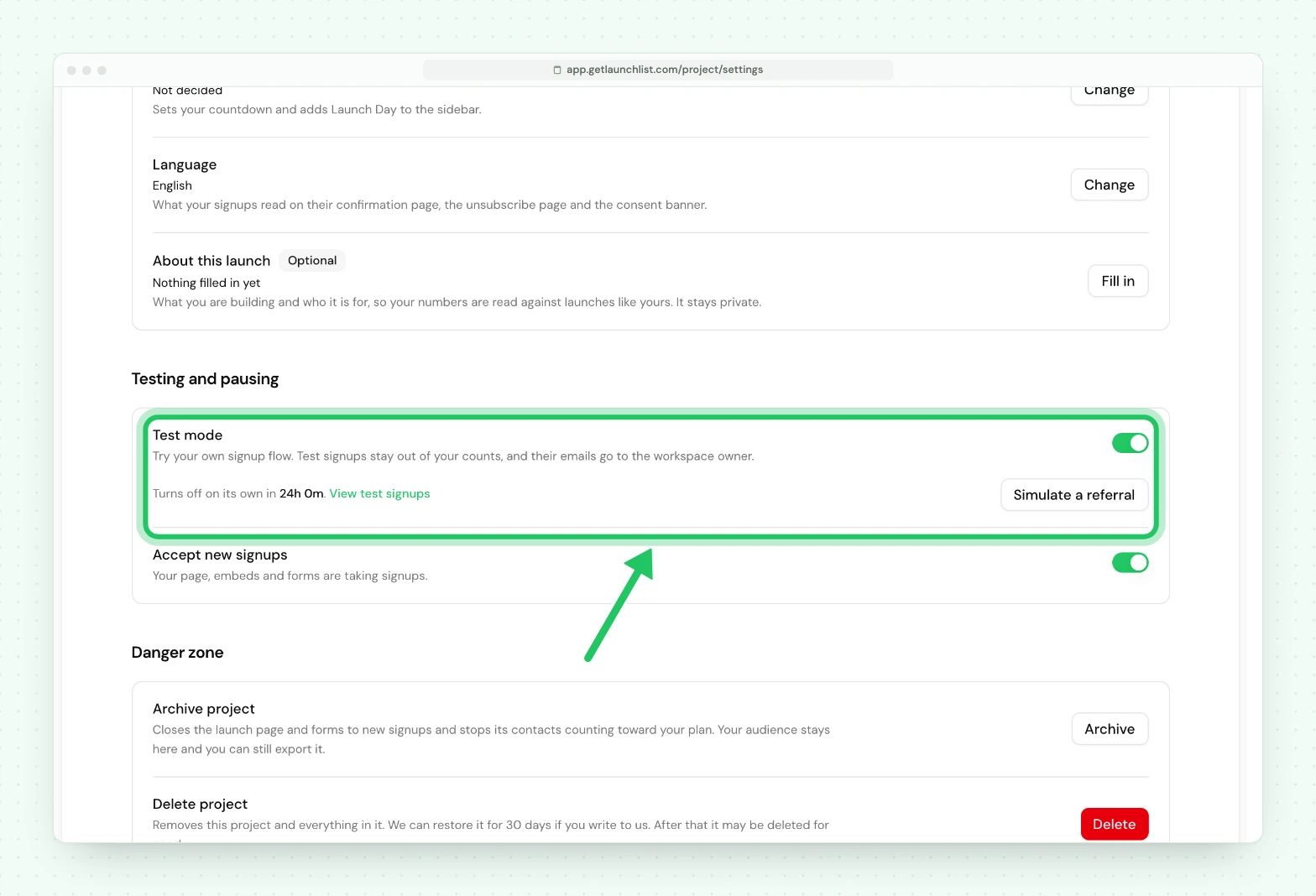
- Open Project settings → General and turn on the Test mode row. A banner appears at the top of every screen while it is on, with the switch to turn it back off. This keeps your practice signup out of your live audience and out of your billable count.
- Open your live page (or your embed) and submit a real address you control.
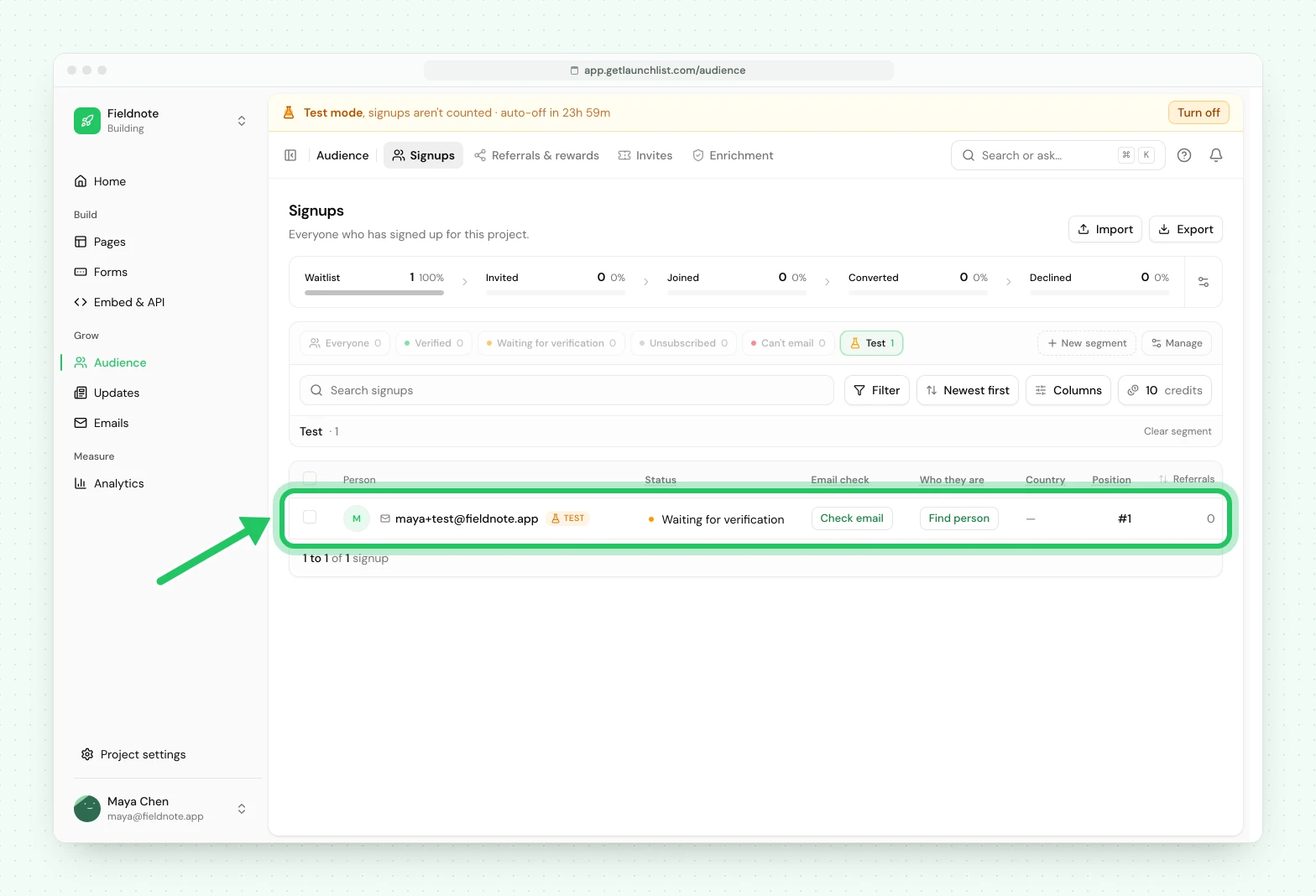
- Back in Project settings → General, press View test signups under the Test mode row. It opens Audience on its Test view, where test signups are kept apart from real ones.
You should see your signup appear within a second, with the page it came from, a trust verdict (real vs likely-fake), and a referral code of its own.
When you are done testing, switch test mode back off so real signups count.
5. Find your referral link#
This is what makes a waitlist grow itself, and it is already running. There is nothing to switch on: every signup gets a personal referral link the moment they join, and when somebody else joins through it the referrer moves up the queue.
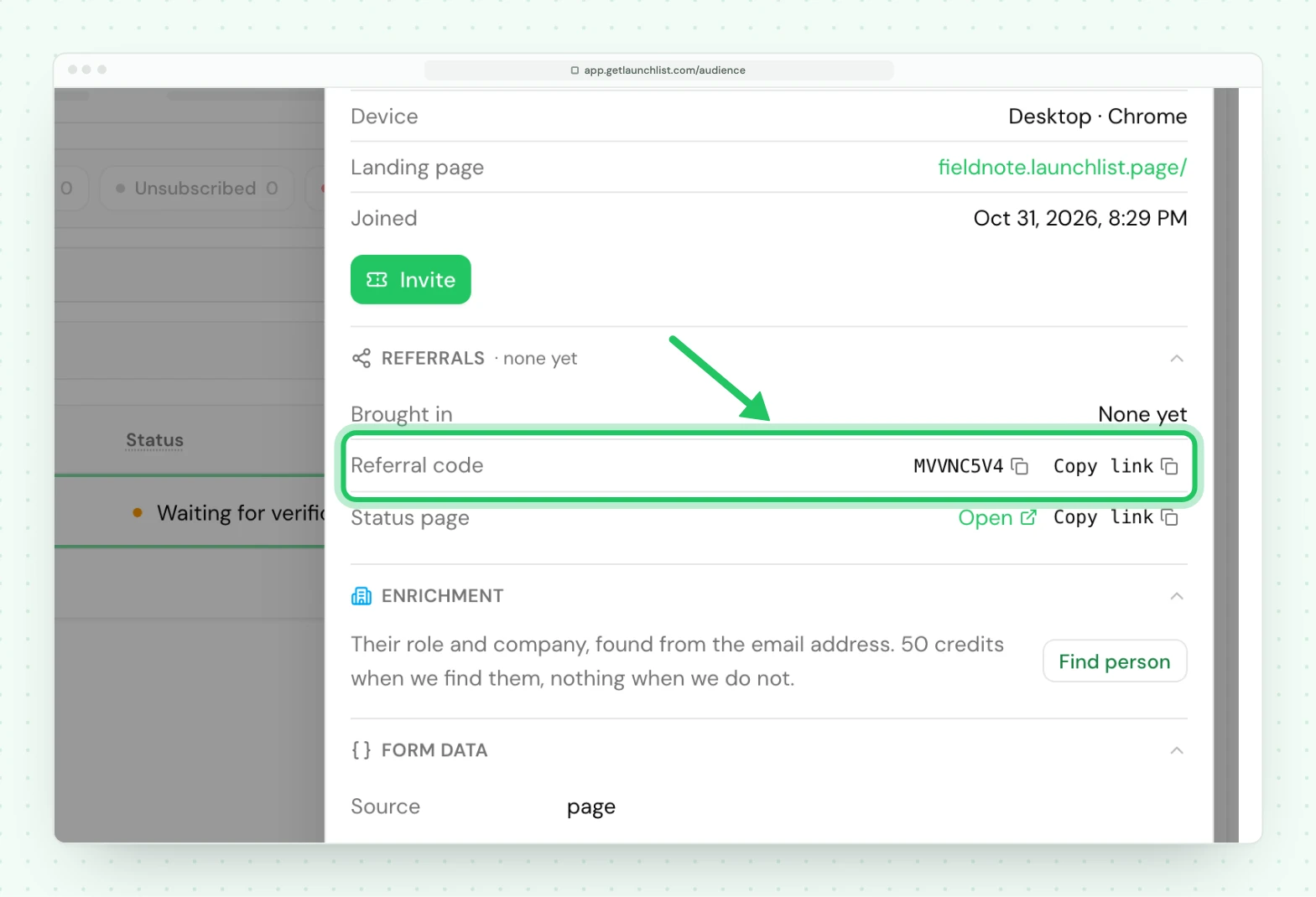
Open the contact you created in step 4 from Audience and you will see their referral code and link sitting there already. It is on their status page too, which is where they will actually copy it from.
What you can tune is what the loop is worth. Open Audience → Referrals & rewards:
- Rewards decide what somebody unlocks at three referrals, or ten. Rewards unlock from real referrals.
- Points move people up the line. A friend who joins gives points, and so can an action like following you on X.
Position alone motivates more than most people expect, so rewards are optional. Read how referrals work before you tune the ladder.
6. Choose what people see after they join#
The moment someone signs up is your highest-intent moment. By default they land on their status page: their queue position, their referral link to share, and a prompt to verify their email if you ask people to.
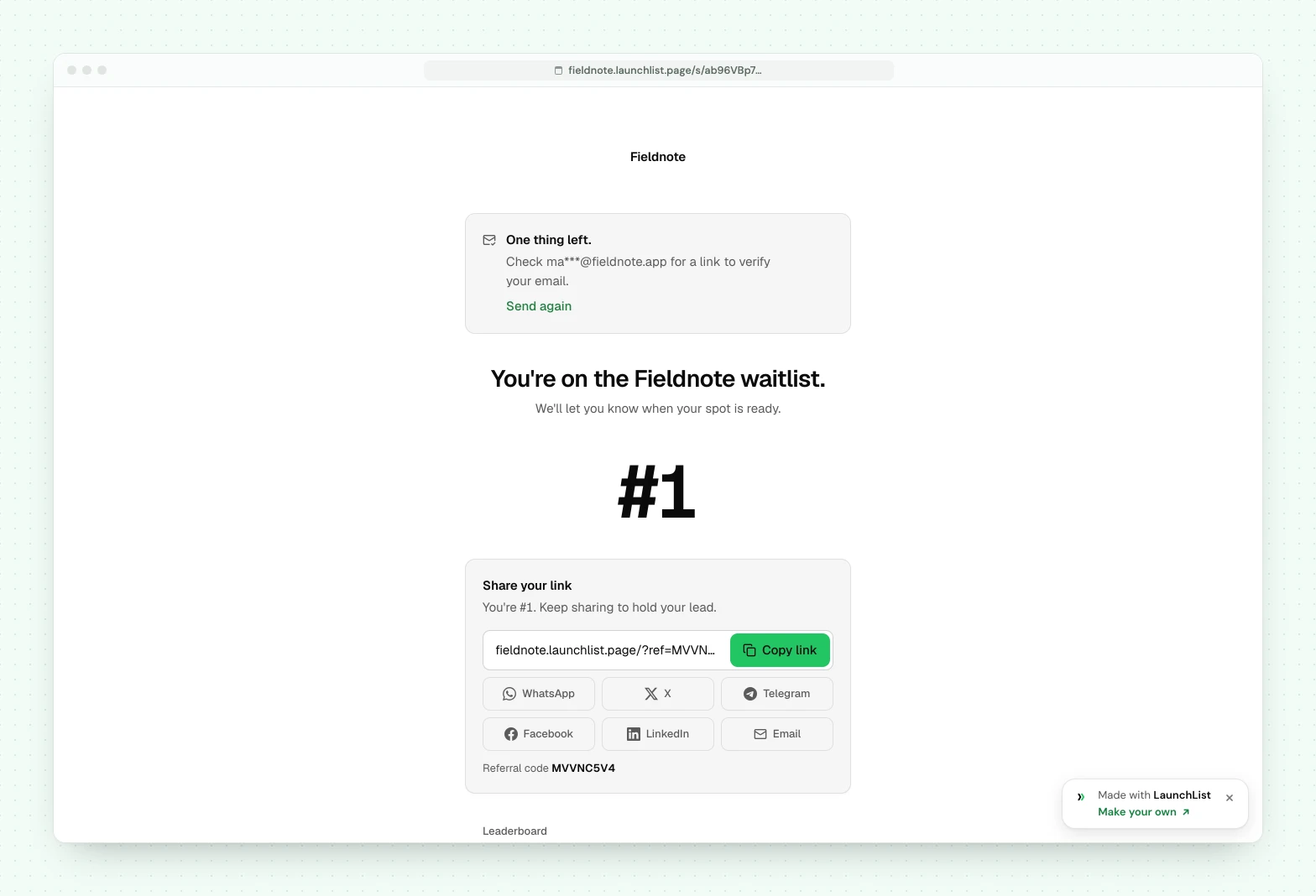
That page quietly answers the single most common question waitlist founders used to get: "am I actually on the list?" You can switch this to an inline message or your own URL in the form's success settings.
You're live. What happens to every signup#
Whichever channel a signup arrives through, it runs the same pipeline, so nothing is skipped:
- Deduplication against your existing contacts, with addresses canonicalized first so a misspelling does not create a second person.
- A trust verdict rating it from verified down to fake, so your numbers mean something.
- Referral credit to whoever sent them, withheld automatically if the signup looks fraudulent.
- A verification email, if you have it switched on.
- Events that fire your webhooks and automations.
Next#
- Core concepts: how workspaces, projects, forms, contacts and pages fit together
- Early access: start letting people off the waitlist
- Custom domain: put the page on your own domain
- Every way to integrate
Common questions
How long does this take?
About ten minutes. Signing up already created your workspace, project, signup form and launch page, so most of this is choosing where signups come from and publishing.
Do I need a website?
No. Every project comes with a hosted launch page at a public URL. Publish it, share the link, and you are collecting signups with no site and no code. If you do have a site, you can embed the form instead. This guide covers both.
How do I test it without messing up my real numbers?
Open Project settings → General and turn on Test mode before you submit a practice signup. A banner then appears at the top of every screen while it is on. Test signups stay out of your live audience and never count toward your billable total.