

How to add a pre-launch waitlist to Shopify
Put a LaunchList signup form on Shopify with a Custom Liquid section, on your coming-soon password page, or site-wide from your theme. No app to install.
Shopify needs no app. LaunchList is two lines of HTML, and every Online Store 2.0 theme has a Custom Liquid section that takes HTML directly. The most useful place for it is often the one that exists before your store does: the coming-soon page.
Add the form with a Custom Liquid section#
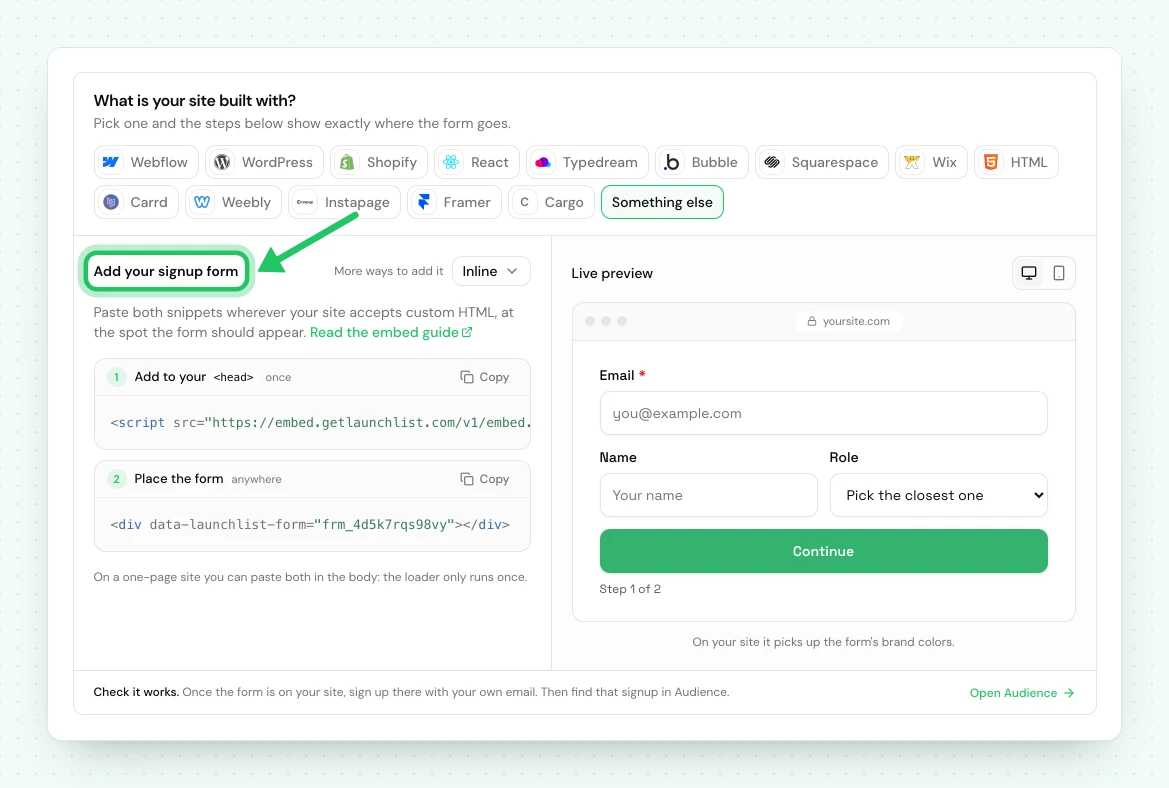
- In LaunchList, open Embed & API → Your website, choose Shopify under What is your site built with?, pick your form if you have more than one, and copy the Inline snippet it shows.
- In Shopify, go to Online Store → Themes and click Customize on your live theme.
- Use the page dropdown at the top of the editor to open the page where the form should appear.
- In the left panel, click Add section where you want it and choose Custom Liquid.
- Paste the snippet into the Liquid code box.
<!-- frm_8Kd2Qm4Rp9 is an example ID; use your own from Embed & API → Your website -->
<div data-launchlist-form="frm_8Kd2Qm4Rp9"></div>
<script src="https://embed.getlaunchlist.com/v1/embed.js" async></script>
- Click Save.
The form renders inside a shadow root, so your theme's CSS cannot leak in and break it, and its own CSS cannot leak out. Change the fields in LaunchList later and the live form updates itself, with nothing to re-paste.
On your coming-soon page#
A store that is not open yet is the textbook waitlist case, and Shopify has a built-in home for it: the password page.
- Go to Online Store → Preferences and turn on Password protection.
- Back in Online Store → Themes → Customize, open the Password template from the page dropdown.
- Add section → Custom Liquid, paste the same snippet, and Save.
Now every visitor sees your launch page and can join the list while the storefront stays locked.
Site-wide, for more than one form#
If you plan to use forms, popups or widgets on several pages, load the runtime once in your theme instead of repeating the script in every section.
Go to Online Store → Themes → ⋯ → Edit code, open Layout → theme.liquid, and paste this
just before the closing </head> tag:
<script src="https://embed.getlaunchlist.com/v1/embed.js" async></script>
Every Custom Liquid section after that only needs the target element:
<div data-launchlist-form="frm_8Kd2Qm4Rp9"></div>
Don't paste it into a page's body HTML#
Shopify's Pages editor (Online Store → Pages) runs your content through a rich-text sanitizer.
Switch it to the <> HTML view, paste the embed, save, and the <script> tag is silently stripped,
so the loader never runs and the form never appears.
Use a Custom Liquid section instead, which preserves the script, or the no-JavaScript form below.
If your embed gets stripped#
Wherever a <script> will not survive, a native form posts straight to the capture endpoint and
needs no JavaScript at all.
<form
    action="https://embed.getlaunchlist.com/f/frm_8Kd2Qm4Rp9/submit"
    method="POST"
>
    <input type="email" name="email" required />
    <input type="hidden" name="_channel" value="html" />
    <button type="submit">Join</button>
</form>
The browser posts it and our server redirects to your Status page or a URL you choose.
Copy the action from Embed & API → Your website rather than typing it: it points at the embed host,
the same origin the loader script comes from, and the two matching is what makes the referral tip
work.
Adding a live signup counter#
Social proof beside the form converts better than the form alone. In a Custom Liquid section:
<div
    data-launchlist-widget="counter"
    data-project="acme"
    data-label="founders already in"
></div>
The counter reads your real signup total and styles itself from your Branding settings. Counter, leaderboard, milestone and countdown are all available, and every one shows aggregate numbers only, never anybody's details.
If something is not working#
| What you see | What to do |
|---|---|
| The section is empty in the editor | The editor preview may not run the embed. Check your live store or the theme preview. |
| Nothing renders on the live store | Confirm the theme is Online Store 2.0 and the section is Custom Liquid, not a rich-text or page block that strips scripts. |
| The embed vanished from a Page | The Pages editor sanitizes out <script>. Move it to a Custom Liquid section, or use the no-JavaScript form. |
| No Custom Liquid on the password page | The theme limits sections there. Use the no-JavaScript form in the template's code instead. |
| The form shows twice | The section is on the page twice; each renders its own form. Remove the duplicate. A script in theme.liquid and a section is harmless. |
| Referrals never credit | On a native form, load the script in theme.liquid so it can inject the referral code, and confirm the form's action is on the same host the script came from. |
Next: every way to integrate · How to add a waitlist to Squarespace
Common questions
Do I need a Shopify app to add a waitlist?
No. LaunchList is two lines of HTML, so a Custom Liquid section holds it directly. There is nothing to install from the App Store and no app to keep updated. A native Shopify app is not yet available.
How do I add a waitlist to my Shopify coming-soon page?
Turn on password protection under Online Store → Preferences, then Customize the Password template and add a Custom Liquid section with your embed snippet. Visitors join the waitlist while the store stays locked.
Why is my embed missing when I paste it into a Shopify page?
Shopify's page editor sanitizes script tags out of page body HTML, so the loader never runs. Use a Custom Liquid section instead, which keeps the script, or the no-JavaScript form, which needs none.
Can I add a signup counter to my Shopify store?
Yes. The counter widget is one div in a Custom Liquid section and shows your live signup total, styled from your brand settings. It never exposes anyone's details.