# How to add a pre-launch waitlist to Shopify
> Put a LaunchList signup form on Shopify with a Custom Liquid section, on your coming-soon password page, or site-wide from your theme. No app to install.
Source: https://getlaunchlist.com/help/docs/integrations/shopify
---
Shopify needs **no app**. LaunchList is two lines of HTML, and every Online Store 2.0 theme has a
**Custom Liquid** section that takes HTML directly. The most useful place for it is often the one
that exists before your store does: the **coming-soon page**.
## Add the form with a Custom Liquid section
1. In LaunchList, open **Embed & API → Your website**, choose **Shopify** under **What is your site built with?**, pick your form if you have more than one, and copy the **Inline** snippet it shows.
2. In Shopify, go to **Online Store → Themes** and click **Customize** on your live theme.
3. Use the page dropdown at the top of the editor to open the page where the form should appear.
4. In the left panel, click **Add section** where you want it and choose **Custom Liquid**.
5. Paste the snippet into the **Liquid code** box.
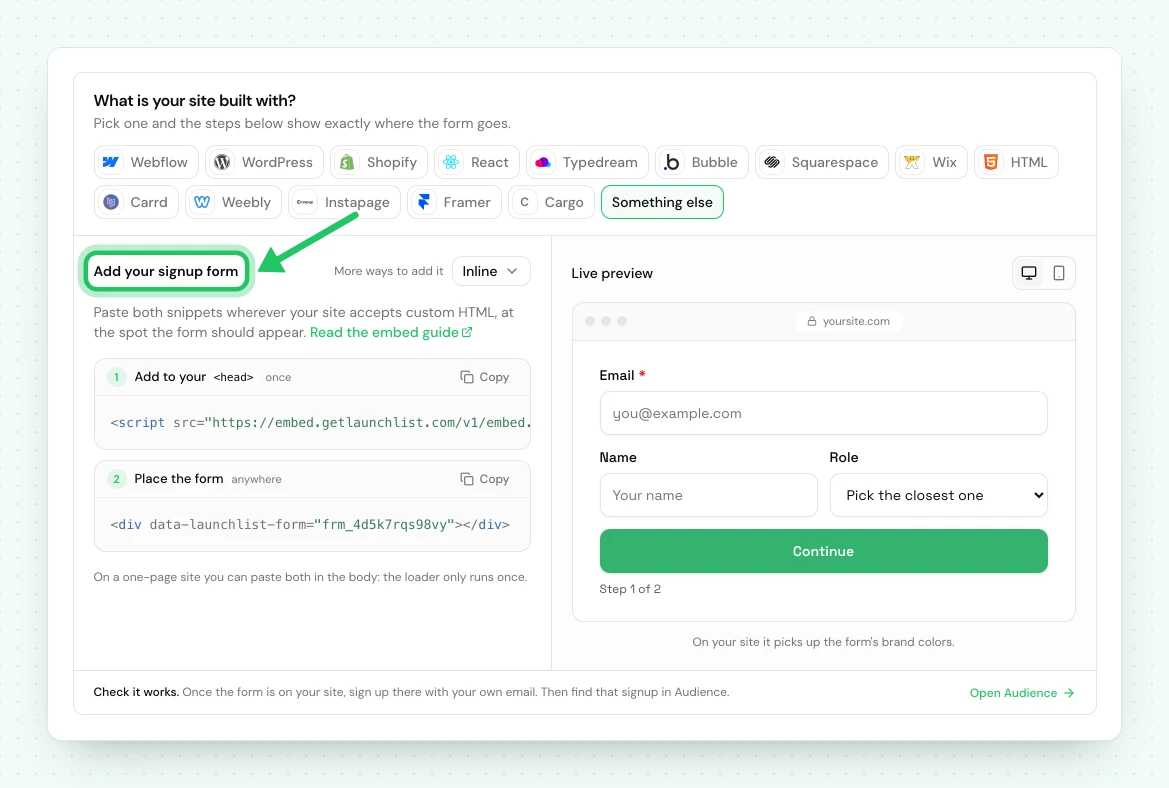
```html
```
6. Click **Save**.
The form renders inside a **shadow root**, so your theme's CSS cannot leak in and break it, and its
own CSS cannot leak out. Change the fields in LaunchList later and the live form updates itself, with
nothing to re-paste.
> [!NOTE] Confirm on the live storefront
> The theme editor preview may not run the embed's JavaScript. If the section looks empty in the
> editor, open your live store (or the theme preview) and it renders there.
## On your coming-soon page
A store that is not open yet is the textbook waitlist case, and Shopify has a built-in home for it:
the **password page**.
1. Go to **Online Store → Preferences** and turn on **Password protection**.
2. Back in **Online Store → Themes → Customize**, open the **Password** template from the page dropdown.
3. **Add section → Custom Liquid**, paste the same snippet, and **Save**.
Now every visitor sees your launch page and can join the list while the storefront stays locked.
> [!NOTE] Some themes limit the password template
> Dawn and most current themes let you add sections to the password page. A few older or heavily
> customized themes do not. If **Custom Liquid** is not offered there, use the
> [no-JavaScript form](#if-your-embed-gets-stripped) below, which drops straight into the template's
> code.
## Site-wide, for more than one form
If you plan to use forms, popups or widgets on several pages, load the runtime once in your theme
instead of repeating the script in every section.
Go to **Online Store → Themes → ⋯ → Edit code**, open **Layout → `theme.liquid`**, and paste this
just before the closing `` tag:
```html
```
Every Custom Liquid section after that only needs the target element:
```html
```
> [!NOTE] This is not an app script tag
> Shopify is retiring **app-injected** script tags in 2027. That does not touch a `