

Launch analytics
Track signups, growth, conversion, referrals and email performance across five tabs, each number compared with the period before.
Open Analytics to see how your launch is doing. It answers one question in five views (Overview, People, Referrals, Invites and Emails): is this working, and if not, what should you do about it. Every headline number is shown beside the same number for the period before.
Analytics never scans your audience, so it stays fast at a million signups.
Overview#
How your launch is going in the range you picked.
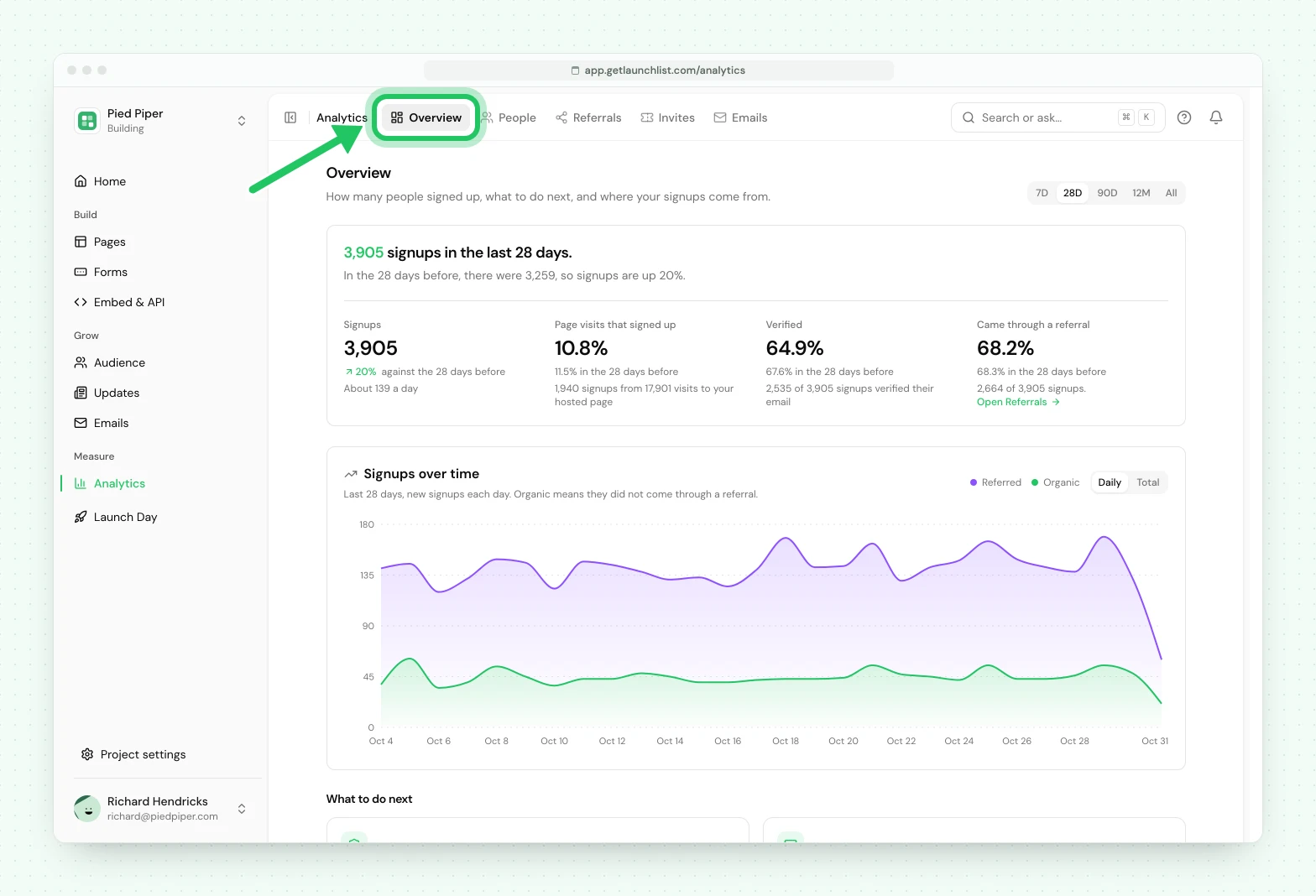
- The summary is one sentence and four numbers for the range: Signups, Page visits that signed up (signups made on your hosted page, out of the visits to it), Verified (the share of those signups that verified their email) and Came through a referral, which links to the Referrals tab. The sentence compares signups with the range before. Each rate shows the rate it was in the range before.
- Signups over time charts your growth, with a Daily or Total toggle and organic split from referred, so you can see which is driving the curve.
- What to do next shows up to three cards, each only while it applies: signups held for review, signups waiting for verification (when they are at least 10% of your list), and the highest day of the range (when it brought at least twice the daily average). Each card opens the screen where you act on it.
- Where signups come from ranks Channels (hosted page, embed, API, import and so on),
Landing pages and Referring sites for the range. Signups made on a development address
such as
localhostare left out of landing pages and referring sites, and the card says how many. This section is part of advanced analytics (see Plans and history below).
Every sentence on this tab is written from your own numbers. Your pipeline stages are on Audience, Signups, and email delivery is on the Emails tab.
People#
Who is signing up and where they are.
- Signups by country is an interactive world map you can pan and zoom, with your top countries ranked beside it. The line under the title also says how people signed up: with an email address, a phone number, a username or a wallet.
Deeper breakdowns, Devices, Browsers, Operating systems, Languages, Timezones and Continents, are part of advanced analytics. The map and the country ranking are on every plan. Every number on this tab is all-time.
Referrals#
How much of your growth comes through referrals, where people drop out, and what to do next.
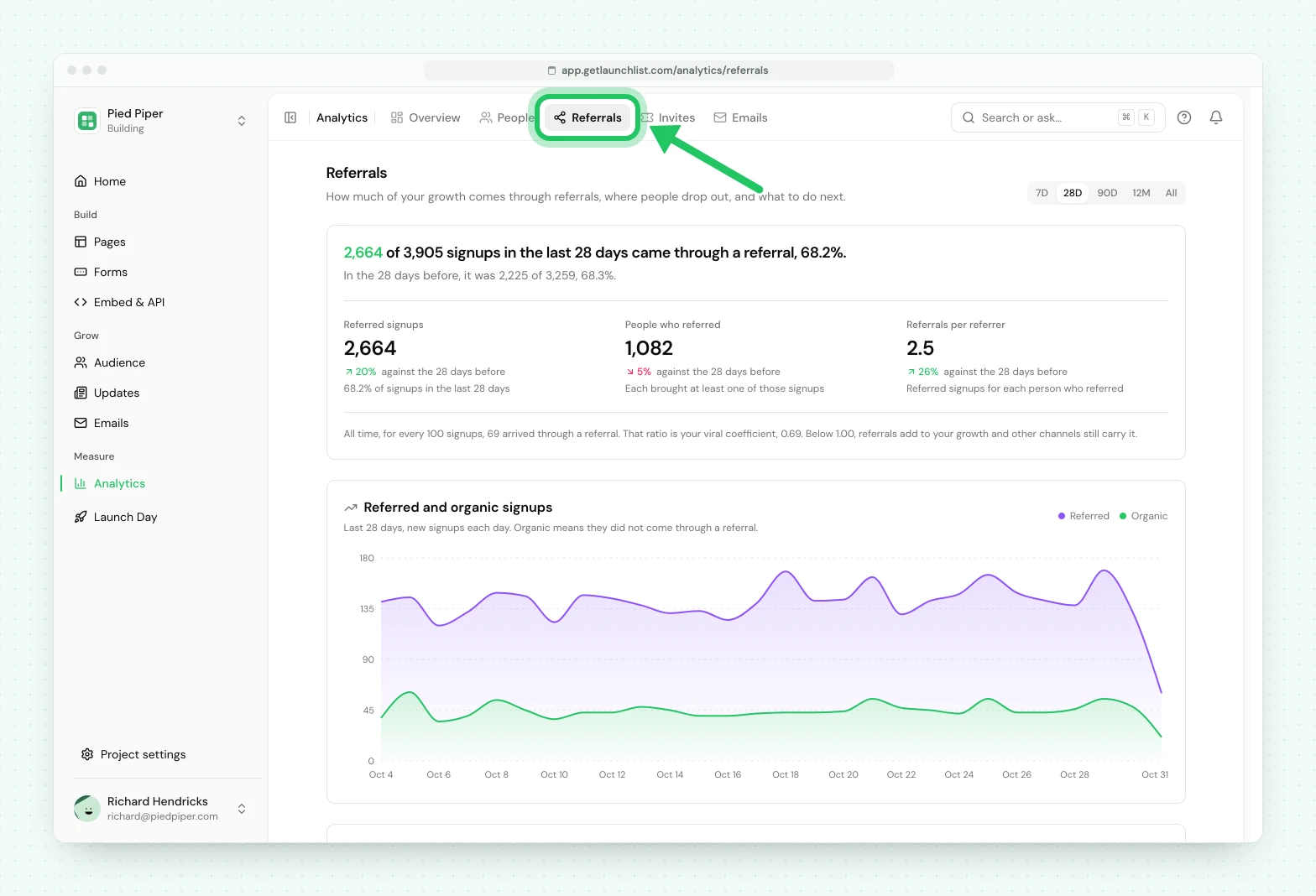
- The summary is one sentence and three numbers for the range you picked: referred signups, the people who referred them, and referrals per referrer, each compared with the range before. Your viral coefficient (K-factor) sits under them, explained in words.
- Referred and organic signups plots the two against each other over the same range.
- From signup to reward is a funnel over your whole list: signed up, referred at least one signup, reached a reward. The biggest drop is marked, with one suggestion for that step.
- What to do next shows up to three cards, each only while it applies: people who are one referral away from a reward, your top referrer, and signups held for review. Each card opens the screen where you act on it.
- Rewards lists each reward with how many people reached it and how many are one referral away.
- Leaderboard ranks your top referrers by network (everyone they referred, plus everyone those people referred) and shows each person's next reward and how far away it is.
- Quality is one line: referrals blocked and signups held for review. Open it to see why referrals were blocked.
Everything below the chart is all-time. LaunchList counts someone as a referrer once a signup arrives through their link.
See how referrals work for the mechanics behind these numbers.
Invites#
What came of the invitations you sent. Inviting people and managing codes is on Audience → Invites; this tab only measures the result, all-time, with no range picker.
- Personal invites counts one code per person, each person once: Invited, Used, Not used yet, Expired and Revoked. They add up to the number invited. Uses of shared codes are reported beside these and never folded in.
- How we know a code was used says which signal marked it: the person pressed Claim on the page we host, your app told us, your app sent the code and it matched, or someone on your team marked it used. A code being used never means the person is inside your product, which LaunchList cannot see.
- Invite batches lists the latest 20 batches, newest first. A batch is one time you selected people on Signups and invited them together.
- Manage invites opens Audience → Invites. When codes have expired, Invite all again is there.
Emails#
What your project sent in the range you pick, and what became of it. System emails (verification, invitation, welcome) are counted beside your broadcasts and automations.
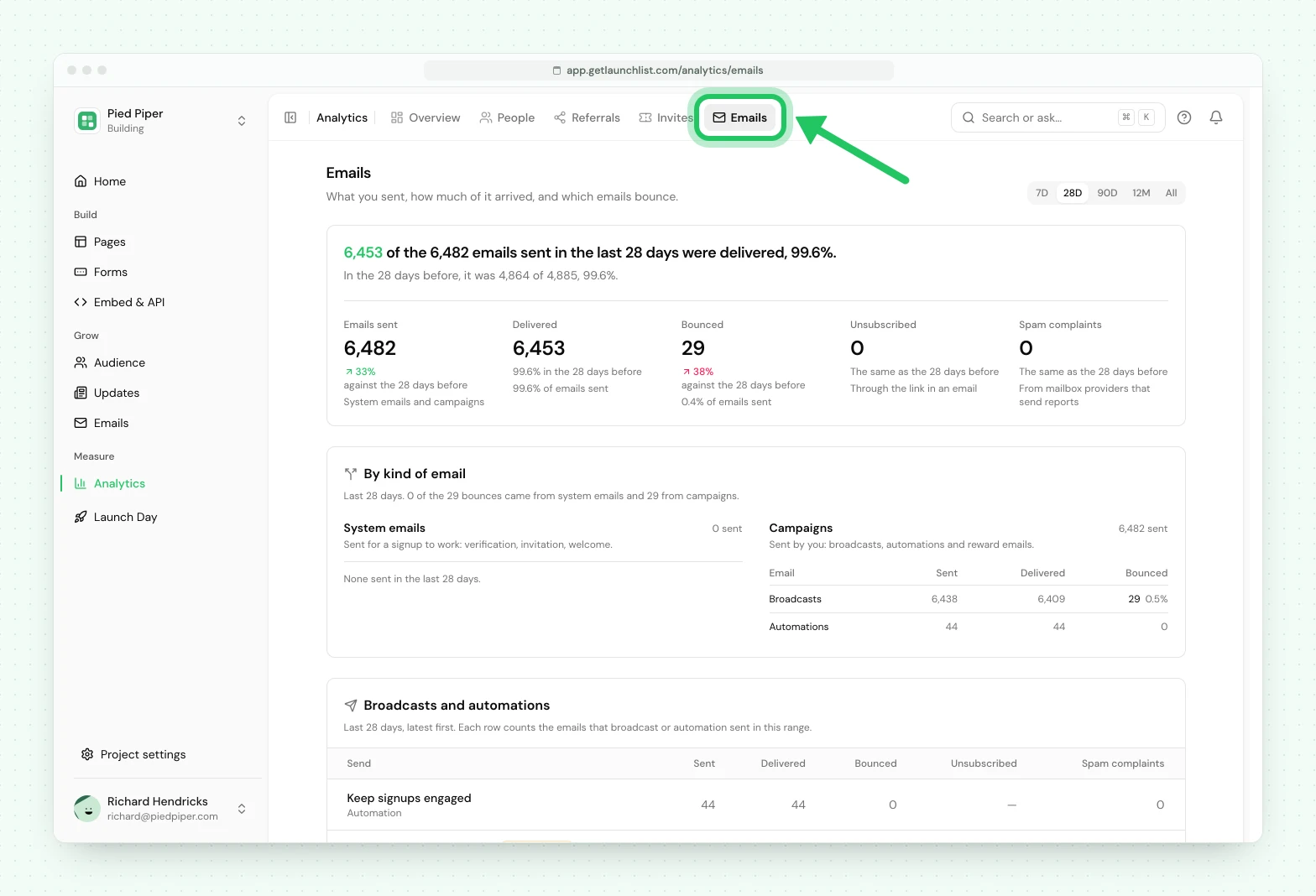
- One sentence says how many of the emails sent were delivered, with the same figure for the period before.
- Five numbers sit under it, each against the period before: Emails sent, Delivered, Bounced, Unsubscribed and Spam complaints. Unsubscribed counts people who used the link in an email.
- By kind of email puts system emails beside campaigns and shows sent, delivered and bounced for each email, so you can see which kind your bounces come from.
- Broadcasts and automations gives each one a row with sent, delivered, bounced, unsubscribed and spam complaints, latest first. The send with the most bounces is marked, and each name opens that broadcast's report or that automation.
- What to do next appears while there is something to act on: contacts whose address cannot receive email, with a link to them in Signups, and spam reports, with a link to the email log.
An address that bounces is marked Bounced and left out of every later send. When the bounce rate for the range reaches 2%, the page says so. LaunchList pauses a workspace's sending for review when 2% of its emails bounce over 30 days, counted once it has sent 500.
Unsubscribes are counted for each broadcast. An automation email's unsubscribe link records the unsubscribe and not the automation, so those appear in the total only.
Plans and history#
Two things about analytics depend on your plan.
History window. How far back you can look is set by your tier:
| Plan | History |
|---|---|
| Free | 28 days |
| Collect | 90 days |
| Launch | 12 months |
| Grow | All time |
Longer windows still appear in the date picker, marked with the plan that unlocks them, so you always know what is one upgrade away.
Advanced analytics. The grouped breakdowns, the Overview Where signups come from section and the deeper People breakdowns (continents, devices, browsers, operating systems, timezones, languages), are included on Grow: what brings you signups (channels, landing pages and referring sites) and who your signups are. On Free, Collect and Launch the Overview shows a locked Where your signups actually came from preview, and People shows a locked preview of the deeper breakdowns, rather than empty cards. The signups map, identity mix, the Overview summary, growth chart, referrals and email deliverability are on every plan.
Next#
- How referrals work: the mechanics behind the referral numbers
- Broadcasts and automations: what the Emails tab measures
- Pipeline stages: the funnel shown on Audience, Signups
Common questions
How do I know if a number is good?
Every headline number is shown beside the same number for the period before, so you can see which way it moved. Analytics compares your launch with itself, using your own data.
Does analytics track email opens and clicks?
No. The Emails tab reports what happened to each email after it was sent, which is delivered, bounced, unsubscribed or marked as spam.
Will analytics slow down with a large list?
No. Analytics never scans your audience table. Totals come from precomputed counters and a per-day rollup, so the page stays fast whether you have 100 signups or a million.