

Import your waitlist from LaunchList v1
Bring an existing LaunchList v1 waitlist into v2 so you can try v2 with your real people, referrals and branding. Your v1 account keeps running, unchanged.
Bring an existing LaunchList v1 waitlist into v2 so you can try v2 with your real people, referrals and branding, instead of starting from an empty account.
This is a copy. Your v1 waitlist keeps running exactly as it is. v2 is a separate platform, and you can run both side by side while v1 keeps working for now. Nothing you do here changes v1, and importing never emails anyone.
The quick way: sign in with your v1 email#
If your v2 account uses the same email address as your v1 account, and you have confirmed that address in v2, the first setup screen says Welcome back and lists your v1 waitlists that have signups. Press Copy followed by the waitlist's name and the copy starts. Confirming the address proves the v1 account is yours, so there is no password to enter.
- Your project takes the waitlist's name, logo and brand color wherever you have not set your own, and from the setup screen its description too. Your page waits as a draft until you publish it.
- Setup ends there and you land on Signups, which shows the copy's progress.
- If your plan holds fewer people than the waitlist, the offer tells you before you press Copy. Nobody is deleted: the rest are kept until you move up a size.
- Start something new instead takes you through the usual setup. We will not ask again.
If you skipped setup, Home offers the same copy until your project has its own first signup or a published page. Press Not now to dismiss it.
The other way: import from New Project#
Use this if your v2 email is different from your v1 email, or the waitlist was not offered.
-
Start the import in v2. In the project switcher choose New project, then press Import your waitlist under Coming from LaunchList v1? instead of creating an empty project. You begin from v2, not from v1, and the copy goes into your current project.
-
Connect your v1 account. On Connect your v1 account, prove the account is yours by entering your v1 email address and password and pressing Connect account, or press Email me a link instead to have us email a confirmation link to your v1 address. Here we only list waitlists on an account you have connected this way.
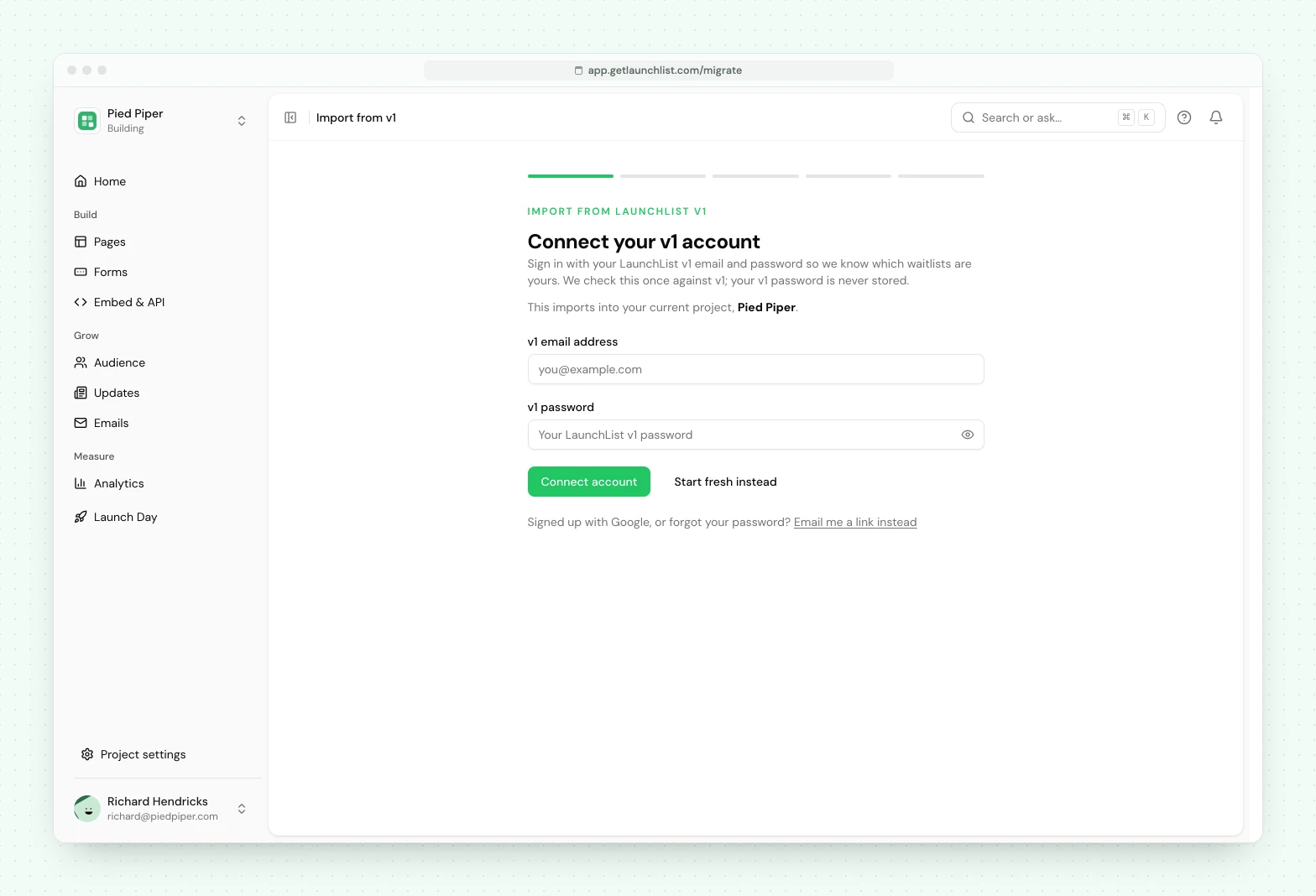
Connect your earlier account to prove it is yours -
Pick a waitlist and import. Press Continue, choose the waitlist under Which waitlist?, check Here's what will move, and press Import to v2. v2 copies it in the background, so you can keep working while it runs.
-
Explore. When it finishes, you have a populated v2 project: your audience, referral graph, page, status page, positions and branding. Send yourself a test signup to see the full flow end to end.
If a copy stops partway, Signups says so: press Try again and it picks up where it stopped. Nobody is copied twice.
That is the whole thing. You are trying v2, not leaving v1.
What moves#
- Your contacts, with their original signup dates preserved, so your analytics reflect your real history rather than reading as if everyone joined today.
- Custom fields you collected.
- Each person's subscribed and unsubscribed status, so your list stays accurate. Everyone on your v1 waitlist who has not unsubscribed arrives subscribed, and whoever had verified their email keeps that proof.
- Your referral links: every referral code and who referred whom, so relationships stay intact.
- Each person's position, so your leaderboard looks right on arrival.
- Your logo and brand colors, applied to your v2 Branding settings, plus a starting page built from your v1 page copy. On an import from New Project, v2 shows you the difference under Update your project? before anything is overwritten and lets you choose whether to bring v1's name, color and logo across.
What does not move, and why#
- Your live signups stay on v1. New people who sign up through your existing form or links keep landing in v1. v2 is a copy you are trying out.
- API keys and webhooks are not copied. You set these up fresh in v2 when you are ready. Copying them could make both v1 and v2 fire the same webhook or send the same message twice.
- Billing is separate. v2 has its own plans, and nothing about your v1 billing carries over.
- Spam and deleted entries are skipped.
Nothing is sent#
Importing never emails your contacts, never triggers automations and never fires webhooks. It only copies data. You decide if and when to send anything from v2.
Keeping v2 up to date#
Because your v1 waitlist keeps collecting signups, you can run the import again anytime (Copy again on Signups) to pull in everyone who joined since your last import. It will not create duplicates, and it refreshes who has unsubscribed. Re-sync before you send anything from v2 so your list is current.
Syncing again never removes people. If you delete a contact in v1, they stay in your v2 copy. To remove someone from v2, remove them in v2.
When you are ready to send new signups to v2#
Trying v2 changes nothing about where your signups go. When you decide you want new signups to arrive in v2, update your integration. Until you do, everything keeps flowing to v1, which is fine.
- Hosted LaunchList page: start sharing your new v2 page URL. Your old v1 page keeps working for now and keeps collecting into v1.
- Website form or popup: replace your v1 embed snippet with the v2 snippet. You can find it in v2 under Embed & API → Your website.
- API: v2 uses a new endpoint and new API keys. Create a v2 key and point your integration at v2.
- Zapier: on the Launch plan or the Grow plan, press Connect on the Zapier row in v2 (Embed & API → Overview → Connectors), connect the LaunchList app in Zapier with the key and rebuild your Zap on it (the Zapier guide). On any plan, open Embed & API → Developers → Webhooks instead and add an endpoint with the URL from a Webhooks by Zapier (Catch Hook) trigger. Your v1 Zap keeps working for now.
- Webhooks: recreate the endpoints you need in v2. Add them fresh so you do not receive the same event from both v1 and v2.
Swap these one at a time. Each is independent, and your v1 setup keeps working for now.
Your existing v1 referral and status links still belong to v1. People who use them may still create activity in v1, and running the import again brings that activity into your v2 copy.
A note on emailing from both#
While you run both platforms, anyone you email from both v1 and v2 will get two messages. If you plan to send from v2, run the import once more first so unsubscribes are current, and pause your v1 sends to that audience.
Common questions
Does importing change anything on v1?
No. Your v1 account is read only during the import and keeps running exactly as it is. Nothing is edited, moved or deleted on v1.
Does importing email my contacts?
No. Importing only copies data. It never emails anyone, never triggers automations and never fires webhooks. You decide if and when to send anything from v2.
Can I import more than one waitlist?
Yes. Import each waitlist you want, and each lands in the v2 project you run the import from.
Can I undo an import?
There is nothing to undo. It is a copy into a separate v2 project and your v1 is unchanged. If a copy does not look right, delete the v2 project and import again.
What if my waitlist is empty?
You do not need an import. Start fresh in v2 and build from there.
I have a custom domain on v1. What happens?
Your custom domain keeps serving v1. Your v2 copy lives on a v2 address while you try it. Moving a custom domain to v2 is a separate step we will help you with.
Do I have to leave v1?
v1 keeps working for now. Import is a copy, so you can try v2 with your real list and run it as often as you like while v1 stays untouched.