

Connect your client
Step-by-step setup for connecting Claude, ChatGPT, Codex, Grok, Gemini CLI, Cursor, VS Code, Windsurf, Mistral, Muse Code and personal agents like Gemini Spark, Grok Bot, Meta Muse, OpenClaw and Hermes to the LaunchList MCP server, over OAuth or an API key.
Every client connects to the same endpoint:
https://mcp.getlaunchlist.com
In the dashboard, Embed & API → AI assistants shows the same thing: pick your assistant first, and the server address appears where that assistant asks for it, followed by prompts you can copy once it is connected.
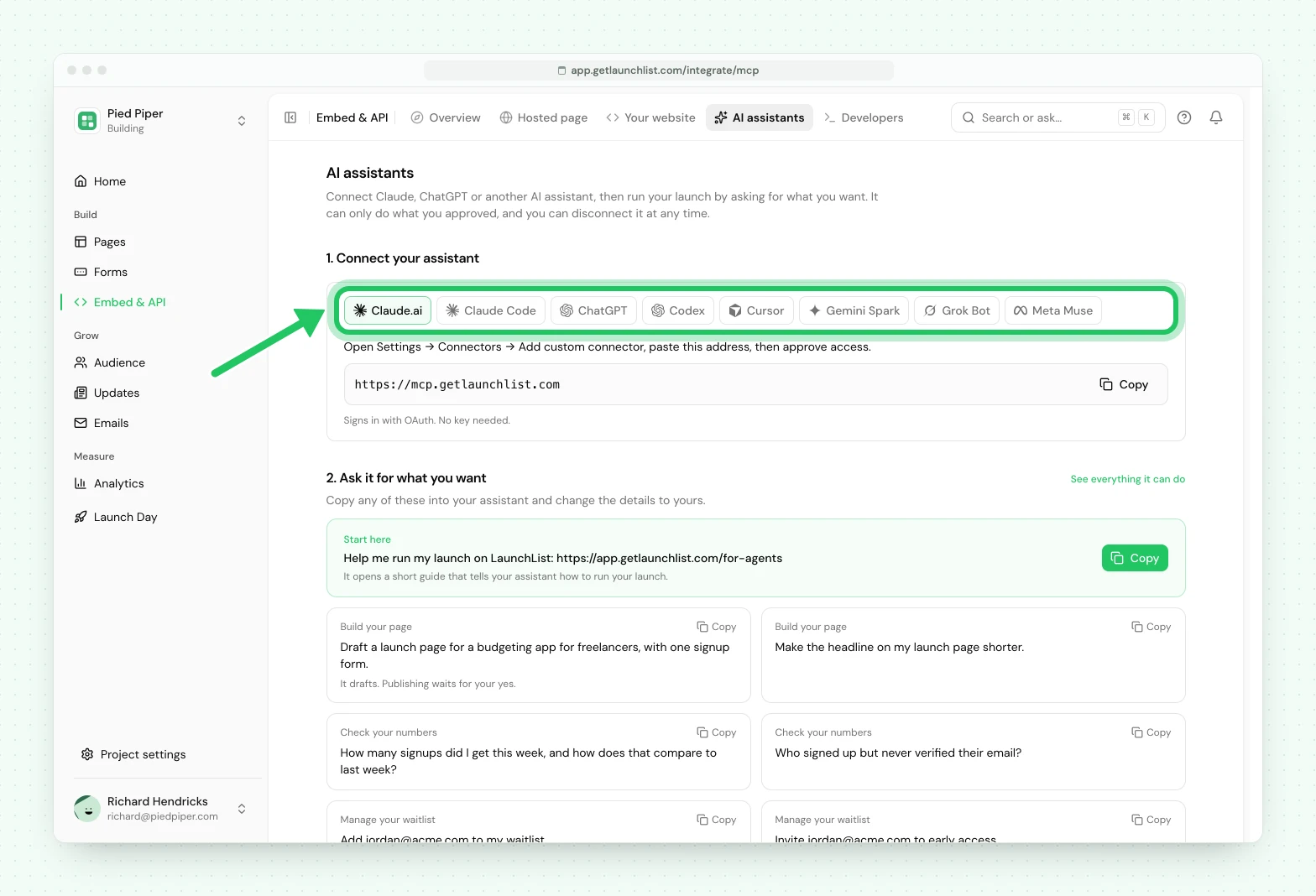
Pick your client below. Chat clients use OAuth: you sign in to LaunchList and approve the
connection in your browser.
Command-line and editor clients can use OAuth or an API key (llk_), which you mint in
Embed & API → Developers → API keys. Where a snippet shows llk_live_..., replace it with your own key.
Claude Code#
One command. Omit the header to sign in with OAuth on first use, or include it to use a key:
claude mcp add --transport http launchlist https://mcp.getlaunchlist.com --header "Authorization: Bearer llk_live_..."
You can also install the LaunchList plugin instead. It brings the same connection, signed in with OAuth, and adds workflow skills for testing an idea and for launching, growing, analyzing and running a waitlist. It is two steps: register the marketplace, then install the plugin from it.
/plugin marketplace add getlaunchlist/launchlist-agents
/plugin install launchlist@launchlist-agents
Claude.ai#
LaunchList is in Claude's connector directory.
- In Claude, open Customize, then Connectors, and search for LaunchList, or open the LaunchList listing.
- Choose Connect.
- Sign in to LaunchList, choose the workspace Claude may use, and approve.
On Claude Team and Enterprise plans, an Owner adds LaunchList for the organization first. Then each member connects it and signs in with their own LaunchList account.
To add it by address instead, open Customize → Connectors, choose Add custom connector and
paste https://mcp.getlaunchlist.com as the remote MCP server URL.
ChatGPT#
LaunchList is in the ChatGPT plugin directory.
- Open Plugins in ChatGPT and find LaunchList, or open the LaunchList listing.
- Choose Install plugin.
- Sign in to LaunchList, choose the workspace ChatGPT may use, and approve.
Your LaunchList sign-in is all ChatGPT needs, and Codex uses the same directory.
To add it by address instead, open Plugins, choose + then Add custom MCP server, and
paste https://mcp.getlaunchlist.com as the server URL.
Gemini Spark#
Gemini Spark is Google's personal agent inside the Gemini app. It is a separate product from Gemini CLI, below.
- On the web, open gemini.google.com, then Settings → Connected Apps.
- Under Custom apps, choose Add a custom app.
- Paste
https://mcp.getlaunchlist.com, choose Next, and complete the OAuth sign-in.
Google offers custom apps to personal Google Accounts in the US, in English, with the Keep Activity setting on. You add the app on the web, and it is then available in the Gemini mobile app too.
Grok Bot#
Grok Bot is xAI's personal agent. It is a separate product from Grok chat, below. You add a server by asking the bot:
Add a custom MCP server called launchlist at https://mcp.getlaunchlist.com
The bot posts a connect card in the chat. Choose Authorize and complete the OAuth sign-in.
Meta Muse#
Meta Muse is Meta's personal agent. It is a separate product from Muse Code, below. You add a server by asking Muse:
Create a Custom Connector for a new remote MCP server, then connect to it:
Name: LaunchList
Transport: remote streamable HTTP
URL: https://mcp.getlaunchlist.com
Auth: OAuth
Muse opens the LaunchList sign-in page. Sign in and approve access. You can remove the connector at any time under Settings → Connectors.
Grok#
- Go to grok.com/connectors.
- Choose New Connector, then Custom.
- Paste
https://mcp.getlaunchlist.comand complete the OAuth sign-in.
On Grok Business and Enterprise, a team admin has to add the connector in the console first before members can use it.
Gemini CLI#
Add the server in one command, then sign in from inside Gemini CLI:
gemini mcp add --transport http launchlist https://mcp.getlaunchlist.com
/mcp auth launchlist
Gemini CLI also detects the sign-in on its own the first time the server asks for it. To use an API key instead, add a header when you add the server:
gemini mcp add --transport http --header "Authorization: Bearer llk_live_..." launchlist https://mcp.getlaunchlist.com
Cursor#
Add the server to ~/.cursor/mcp.json:
{
    "mcpServers": {
        "launchlist": {
            "url": "https://mcp.getlaunchlist.com"
        }
    }
}
Cursor signs in with OAuth on first use. To use an API key instead, add a header:
{
    "mcpServers": {
        "launchlist": {
            "url": "https://mcp.getlaunchlist.com",
            "headers": {
                "Authorization": "Bearer llk_live_..."
            }
        }
    }
}
VS Code#
Add the server to .vscode/mcp.json in your workspace (note VS Code uses servers and requires
an explicit type):
{
    "servers": {
        "launchlist": {
            "type": "http",
            "url": "https://mcp.getlaunchlist.com"
        }
    }
}
Codex CLI#
Codex reads its MCP servers from ~/.codex/config.toml. Add a table for the server:
[mcp_servers.launchlist]
url = "https://mcp.getlaunchlist.com"
Then sign in with OAuth, which stores the credentials for you:
codex mcp login launchlist
To use an API key instead of OAuth, point Codex at an environment variable holding the key. Codex
sends its value as Authorization: Bearer <token> automatically:
[mcp_servers.launchlist]
url = "https://mcp.getlaunchlist.com"
bearer_token_env_var = "LAUNCHLIST_MCP_KEY"
export LAUNCHLIST_MCP_KEY="llk_live_..."
You can also add the server in one command, which writes the same table:
codex mcp add launchlist --url https://mcp.getlaunchlist.com
If Codex reports that it ignored the server, upgrade to a current build: older versions gated remote HTTP servers behind an experimental flag and skipped them silently without it.
Windsurf#
Windsurf's Cascade reads ~/.codeium/windsurf/mcp_config.json. It is the one client that uses
serverUrl rather than url:
{
    "mcpServers": {
        "launchlist": {
            "serverUrl": "https://mcp.getlaunchlist.com",
            "headers": {
                "Authorization": "Bearer llk_live_..."
            }
        }
    }
}
Mistral#
- Open Connectors and choose Add Connector.
- Pick the Custom MCP Connector tab, name it
launchlist, and pastehttps://mcp.getlaunchlist.comas the server URL. - Choose Connect. Mistral detects the sign-in method, so complete the OAuth sign-in when asked.
Muse Code#
Muse Code, Meta's coding agent, reads MCP servers from the mcp_servers block of its settings
file. Add LaunchList as a streamable_http server:
{
    "mcp_servers": {
        "launchlist": {
            "transport": "streamable_http",
            "url": "https://mcp.getlaunchlist.com"
        }
    }
}
Then sign in with OAuth. Muse Code keeps and refreshes the token for you:
muse mcp login launchlist
To use an API key instead, add a headers object with "Authorization": "Bearer llk_live_..." to
the same entry.
OpenClaw#
OpenClaw is an open-source personal agent that runs on your own machine and works across chat apps
like WhatsApp, Telegram and Slack. Add LaunchList as a remote MCP server in
~/.openclaw/openclaw.json:
{
    "mcp": {
        "servers": {
            "launchlist": {
                "url": "https://mcp.getlaunchlist.com",
                "transport": "streamable-http"
            }
        }
    }
}
Then sign in with OAuth:
openclaw mcp login launchlist
You can also add it from the Control UI (Settings → MCP → Add server, Streamable HTTP transport, with the endpoint), or in one command:
openclaw mcp add launchlist --url https://mcp.getlaunchlist.com --transport streamable-http
To use an API key instead of OAuth, store it through OpenClaw's secret mechanism and send it as the
server's Authorization header rather than pasting the key into the config file.
Hermes#
Hermes Agent, from Nous Research, is another open-source personal agent. Add LaunchList to its
mcp_servers block in ~/.hermes/config.yaml. On first connect Hermes prints a sign-in link and
opens your browser; to sign in (or sign in again) yourself, run hermes mcp login:
mcp_servers:
    launchlist:
        url: 'https://mcp.getlaunchlist.com'
        auth: oauth
hermes mcp login launchlist
To use an API key instead, drop the auth line and send a bearer header:
mcp_servers:
    launchlist:
        url: 'https://mcp.getlaunchlist.com'
        headers:
            Authorization: 'Bearer llk_live_...'
More clients#
Any client that speaks Streamable HTTP connects the same way: point it at
https://mcp.getlaunchlist.com, and either let it run OAuth or send an Authorization: Bearer llk_…
header. The one thing that differs between clients is the exact key names, so use the table below.
| Client | Where it configures | Transport key | Server URL key |
|---|---|---|---|
| Cline | cline_mcp_settings.json |
"type": "streamableHttp" |
url |
| Roo Code | mcp_settings.json or .roo/mcp.json |
"type": "streamable-http" |
url |
| Continue | ~/.continue/config.yaml (a list) |
type: streamable-http |
url (auth under requestOptions.headers) |
| Zed | ~/.config/zed/settings.json under context_servers |
none (auto) | url |
| Goose | ~/.config/goose/config.yaml under extensions |
type: streamable_http |
uri |
| JetBrains AI Assistant (2025.3+) | Settings → Tools → AI Assistant → MCP | none (auto) | url |
| Cherry Studio | Settings → MCP Servers → Add (form) | Streamable HTTP | URL field |
Watch the transport key: it is streamableHttp in Cline, streamable-http in Roo Code and
Continue, and streamable_http in Goose, all for the same transport. Zed, Goose, JetBrains and
Cline can also run OAuth, which they trigger when you leave the Authorization header off.
Any other client#
Any MCP client that supports Streamable HTTP works. Give it the endpoint above and either let it
run OAuth, or send an Authorization: Bearer llk_… header with an API key. If the client supports
OAuth discovery, an unauthenticated request returns a WWW-Authenticate header that points it at
the sign-in flow automatically.
Next: see everything an assistant can call on Tools, and how access is granted and revoked on Security and permissions.
Common questions
Which clients can connect to the LaunchList MCP server?
Any client that speaks Model Context Protocol over Streamable HTTP. This page covers Claude Code, Claude.ai, ChatGPT, Codex CLI, Grok, Gemini CLI, Cursor, VS Code, Windsurf, Mistral and Muse Code, the personal agents Gemini Spark, Grok Bot, Meta Muse, OpenClaw and Hermes, and a table of other clients like Cline, Continue, Zed and Goose. The same endpoint works for anything else.
Do I paste an API key, or sign in?
Chat clients like Claude, ChatGPT, Grok and Mistral should sign in with OAuth, which needs no key. Command-line and editor clients can either sign in with OAuth or send an llk_ API key as a bearer token. Both reach the same tools.