# How to add a waitlist to Carrd
> Put a LaunchList signup form on a Carrd site with two lines of code in Carrd's Embed element, which needs Carrd Pro Standard or higher.
Source: https://getlaunchlist.com/help/docs/integrations/carrd
---
Carrd's **Embed** element runs raw HTML, so a LaunchList form goes into a Carrd site with two lines,
in about three minutes. Change the form's fields later and the live form updates itself, with
nothing to re-paste.
The Embed element needs Carrd **Pro Standard or higher**. Carrd's Free and Pro Lite plans have no
embeds and no forms, so on those, link a button to your LaunchList hosted page instead.
## Before you start
You need a Carrd site on Pro Standard or higher that you can edit, and a LaunchList project with at
least one form. If you signed up and skipped setup, your project already has a waitlist form waiting
for you. (A Carrd form of your own that sends to an outside URL needs Pro Plus or higher. This guide
uses the Embed element instead.)
## Copy your embed snippet
Two pieces go onto your Carrd site: a target element that marks where the form belongs, and the
runtime that fills it in.
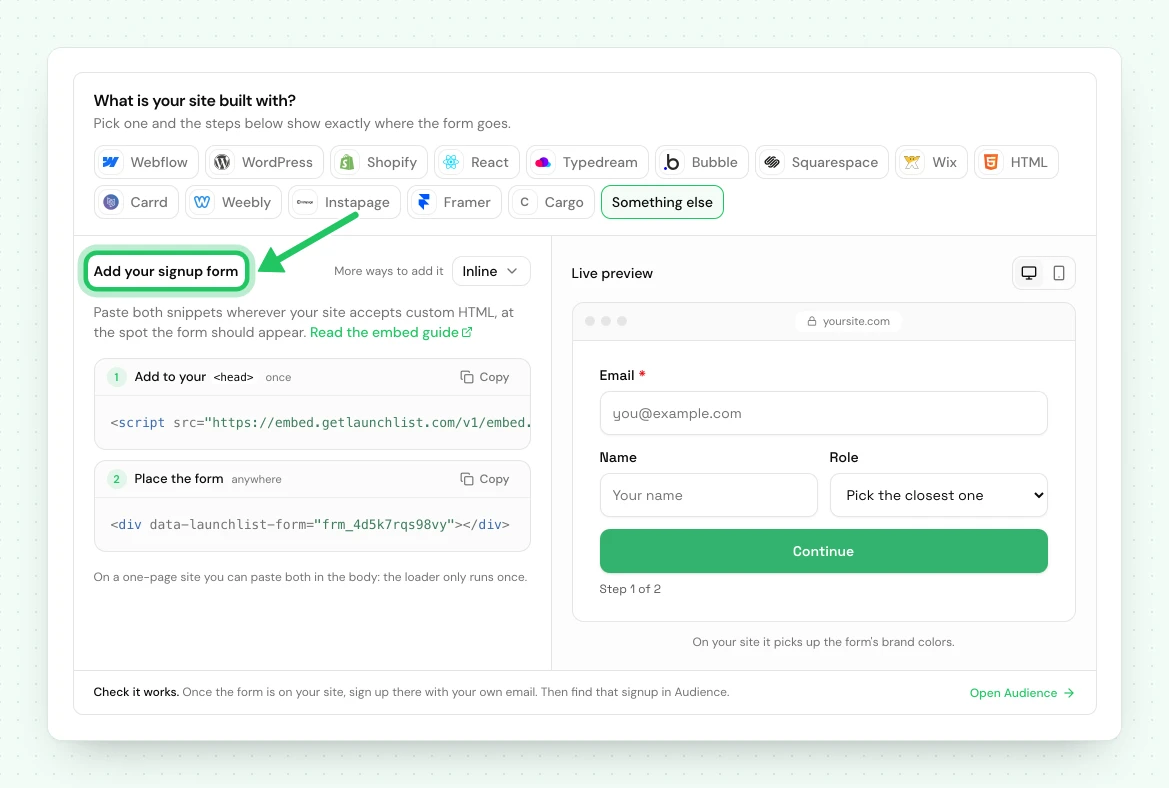
1. In LaunchList, open **Embed & API** and choose the **Your website** tab.
2. Under **What is your site built with?**, choose **Carrd**. Pick the form you want if you have more than one; the **Inline** snippet is the one shown.
3. Copy the snippet.
```html
```
The `data-launchlist-form` value is your form's public ID. It is safe to publish: it identifies the
form but grants no access to your audience.
> [!TIP] The snippet is already filled in for you
> The copy button in Embed & API inserts your real form ID, so you can paste it straight into Carrd
> without editing anything.
## Add the Embed element in Carrd
1. Open your Carrd site in the editor and click **+** to add an element.
2. Choose **Embed** from the element list.
3. Set **Type** to _Code_ and **Style** to _Inline_.
4. Paste the snippet into the **Code** box, then close the panel.
> [!WARNING] Carrd's editor will not render the form
> Embed elements show a gray placeholder while you are editing. That is expected and not a mistake
> on your side. The form appears once you publish or open the live preview.
## Publish and test
Publish the Carrd site, open the live URL, and submit a real address. The signup appears in
**Audience** within a second, tagged with the page it came from.
Every signup captured this way runs the full pipeline: deduplication against your existing contacts,
referral credit if the visitor arrived on a referral link, a trust verdict marking it real or fake,
and the verification email if you have that switched on.
## Match your site's styling
The form renders inside a shadow root, so your Carrd styles cannot leak in and break it, and its
styles cannot leak out and break your page. To restyle it, use **Design** in the LaunchList form editor
rather than CSS on the Carrd side.
> [!NOTE] Set the width in Carrd, not in the form
> The form fills whatever container it sits in. Use the Embed element's own width setting to control
> how wide it renders.
## If something is not working
| What you see | What to do |
| ------------------------------------- | --------------------------------------------------------------------------------------------------------------------------------------- |
| Nothing renders on the live site | Carrd strips `