# How to add a waitlist to Cargo > Put a LaunchList signup form on a Cargo site by pasting a plain HTML form into a page's Code View. It needs no JavaScript, so it does not depend on Cargo running scripts. Source: https://getlaunchlist.com/help/docs/integrations/cargo --- Cargo lets you edit the HTML of each page in **Code View**, and its docs say custom scripts can be added for the whole site under **Site Settings → CSS/HTML → HTML**. What Cargo's docs do not say is whether a script pasted into a single page runs. So start with the method that needs no script at all: a plain HTML form that posts straight to LaunchList. ## Pick a method | Method | Needs a script to run | Use it when | | ----------------------------------------------------- | --------------------- | ---------------------------------------------------------------------- | | [Plain HTML form](#add-a-plain-html-form) | No | Start here. Works on any Cargo page. | | [Inline embed](#add-the-inline-embed) | Yes | You want the LaunchList-styled form, and checked that the loader runs. | | [Link to your launch page](#link-to-your-launch-page) | No | You want no code on the Cargo site at all. | Every method runs the same pipeline once a signup lands: deduplication, referral credit, a trust verdict marking it real or fake, and the verification email if you have that switched on. ## Before you start You need a Cargo site you can edit and a LaunchList project with at least one form. If you signed up and skipped setup, your project already has a waitlist form. ## Add a plain HTML form ### Copy the snippet 1. In LaunchList, open **Embed & API** and choose the **Your website** tab. 2. Under **What is your site built with?**, choose **Cargo**. Pick your form if you have more than one. 3. Next to **Add your signup form**, open **More ways to add it** and choose **HTML**. 4. Copy the form snippet. ![Embed & API, Your website with Cargo chosen and the HTML way to add it, showing a plain form snippet to copy.](https://app.getlaunchlist.com/images/docs/integrations/cargo/01-html-method.webp "Under More ways to add it, choose HTML.") It looks like this, with your own form's fields and address: ```html
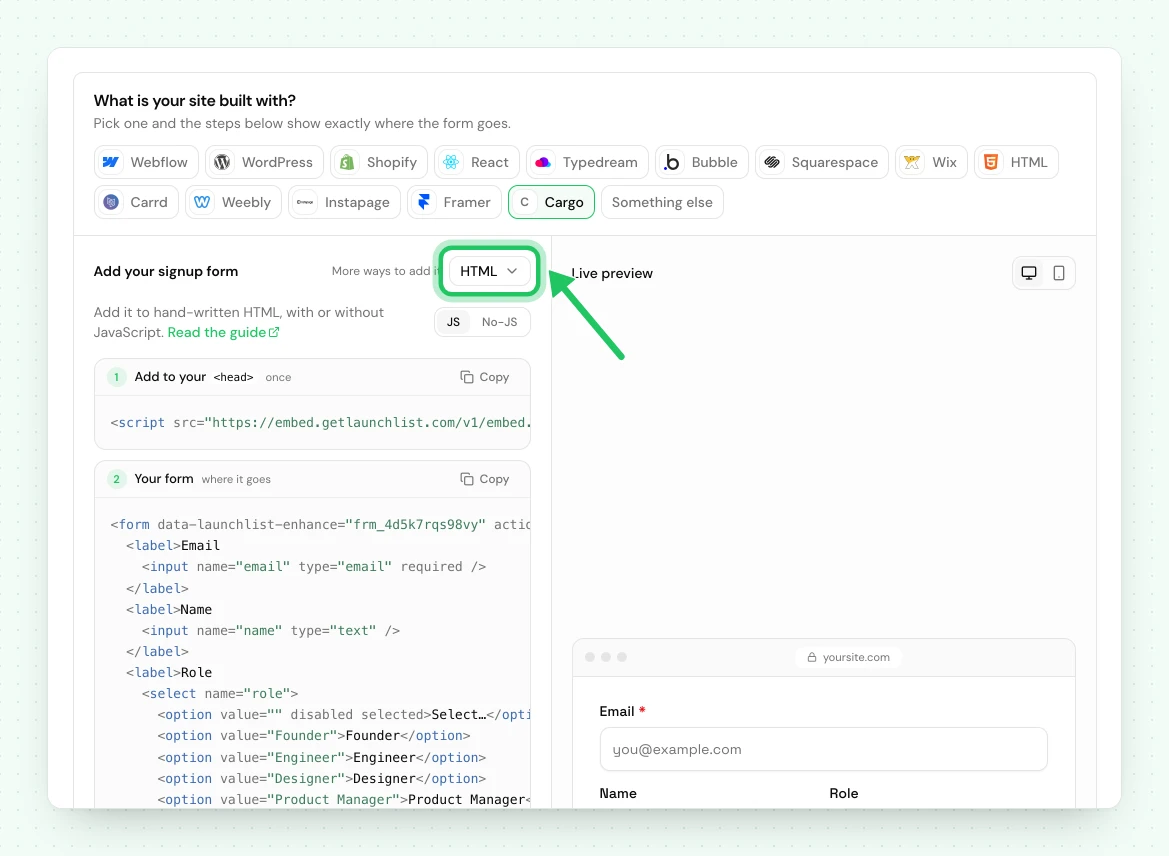
``` Copy the `action` from LaunchList rather than typing it. The input `name` values must match your form's field keys, and the copied snippet already has them right. ### Choose where the signup lands The browser submits this form and LaunchList answers with a redirect, so the form needs somewhere to send the visitor. In the form editor, set **After signup** to **Status page**, or to **Link** with a page of your own, such as a thank-you page on your Cargo site (Link is on the Collect plan and above). > [!WARNING] A message has nowhere to go > With **After signup** set to **Message**, the visitor is sent back to the page they came from with > nothing confirming the signup worked. Use the Status page or **Link** with this method. ### Paste it into Cargo 1. Open your site in the Cargo editor and go to the page where the form belongs. 2. Open **Code View** from the top menu bar. It shows the HTML that renders the page's content. 3. Paste the snippet where the form should appear. 4. Click **Update** to see the change, then close Code View to apply it. 5. Publish the site. Cargo's docs note that Code View is empty while a page has no content. That is fine: paste the snippet into the empty view. > [!NOTE] Check the markup survived > Cargo's docs do not say whether Code View keeps every tag and attribute as pasted. After you click > **Update**, reopen Code View and check the `
` still has its `action` and `method="POST"`. ### Style it in Cargo This form is part of your page, so Cargo's **CSS editor** (Site Settings → CSS/HTML) styles it like any other element. Cargo's docs explain how to scope a rule to one page by prefixing it with the page's ID. ### Add referral credit (optional) A plain form cannot read `?ref=` from the address bar, so on its own a referral link does not credit the person who shared it. The LaunchList loader fixes that: it finds the form by its `action` and adds the referral code and UTM parameters as hidden fields. It never takes over the submission. Cargo's docs say custom scripts go under **Site Settings → CSS/HTML**, on the **HTML** tab. Paste the loader there and click **Update**: ```html ``` Then check it works: open your live site with `?ref=` and a real signup's referral code on the end, sign up with a new address, and confirm the referrer's count goes up in **Audience**. If it does not, the form still collects signups, only without referral credit. ## Add the inline embed The inline embed is the LaunchList-styled form, drawn by the loader and updated whenever you change the form's fields. It only works if the loader runs on your Cargo site, so check that first. 1. In LaunchList, open **Embed & API → Your website**, choose **Cargo**, and copy the **Inline** snippet. 2. In Cargo, add the ` ``` If nothing appears on the live site, use the plain HTML form above instead. The form renders inside a shadow root, so Cargo's CSS cannot restyle it: change its look under **Design** in the LaunchList form editor. ## Link to your launch page Every LaunchList project has a hosted launch page at `your-slug.launchlist.page`, or on your own domain on a paid plan. Add a link or a button on your Cargo site that points to it, and signups happen there. No code goes on the Cargo site. See [the launch page](/help/docs/page/launch-page). ## Publish and test Open the live site, not the editor, and submit a real address. The signup appears in **Audience**, and the visitor sees what you chose under **After signup** in the form editor. ## If something is not working | What you see | What to do | | ----------------------------------------------- | --------------------------------------------------------------------------------------------------------------------------------------------------------------- | | Submitting returns to the same page, no message | The form's **After signup** is set to **Message**. Switch it to the Status page, or to **Link** on the Collect plan and above. | | The form vanished or changed after Update | Reopen Code View and check the `` tag still has its `action` and `method="POST"`. Paste the snippet again if not. | | A field lands in the wrong place | Each input's `name` must match the field's key in LaunchList, not its label. Copy the snippet again rather than editing names by hand. | | Referral links do not credit | The loader is not running. Check it is under Site Settings → CSS/HTML → HTML and that you clicked **Update**. Without it, signups still arrive, without credit. | | The inline embed shows nothing | The loader is not running on that page. Use the plain HTML form, which needs no script. | | Submits but nothing lands in Audience | Check the form is published in LaunchList. A draft form accepts nothing. | --- Next: [every way to integrate](/help/docs/integrations/overview) · [the plain HTML form in full](/help/docs/integrations/html) ## Common questions ### Which LaunchList method works best on Cargo? The plain HTML form. It is ordinary form markup that posts to LaunchList, so it works whether or not a script runs on the page. Paste it into the page's Code View. ### Do referrals work with the plain HTML form on Cargo? Only if the LaunchList loader also runs on the site. Cargo's docs say custom scripts go under Site Settings → CSS/HTML → HTML. Add the loader there, then check a referral link credits its referrer. ### Can I style the form to match my Cargo site? Yes, with the plain HTML form. It is part of your page, so Cargo's CSS editor styles it like any other element. The inline embed takes the design you pick in the LaunchList form editor instead.